Key Takeaways
- You can disable the automatic download of Google Chrome GenAI mode directly through a Settings Catalog policy in Microsoft Intune.
- No need to deploy custom registry keys or scripts for this configuration.
- Using Settings Catalog makes policy management simpler and easier to maintain.
- Native Intune policy deployment provides a cleaner and more scalable approach.
When the Google Chrome policy is configured as Allowed (0) or left Not Configured, Chrome automatically downloads the foundational GenAI model and uses it for local inference on the device. This enables AI-powered browser features without requiring additional user interaction or manual downloads.
Disable Automatic Download of GenAI Mode in Google Chrome with an Intune Settings Catalog Policy
If the policy is configured as Disabled (1), Chrome prevents the GenAI foundational model from being downloaded to the device. Administrators can also block model downloads using the ComponentUpdatesEnabled policy. This gives organizations better control over AI-related components, bandwidth usage, and local AI processing behavior within managed environments.
- Sign in to the Microsoft Intune admin center.
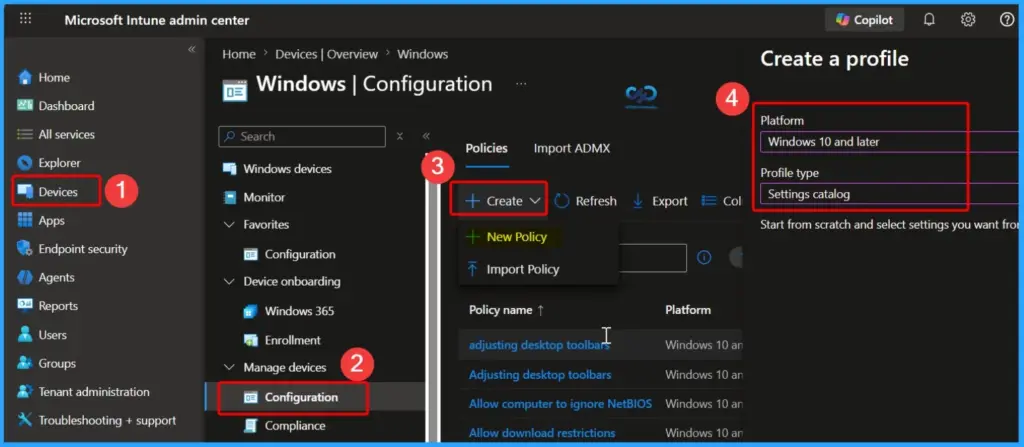
- Navigate to Devices > Windows > Configuration.
- Click + Create and then select + New Policy.
- Under Platform, choose Windows 10 and later.
- Under Profile type, select Settings catalog.
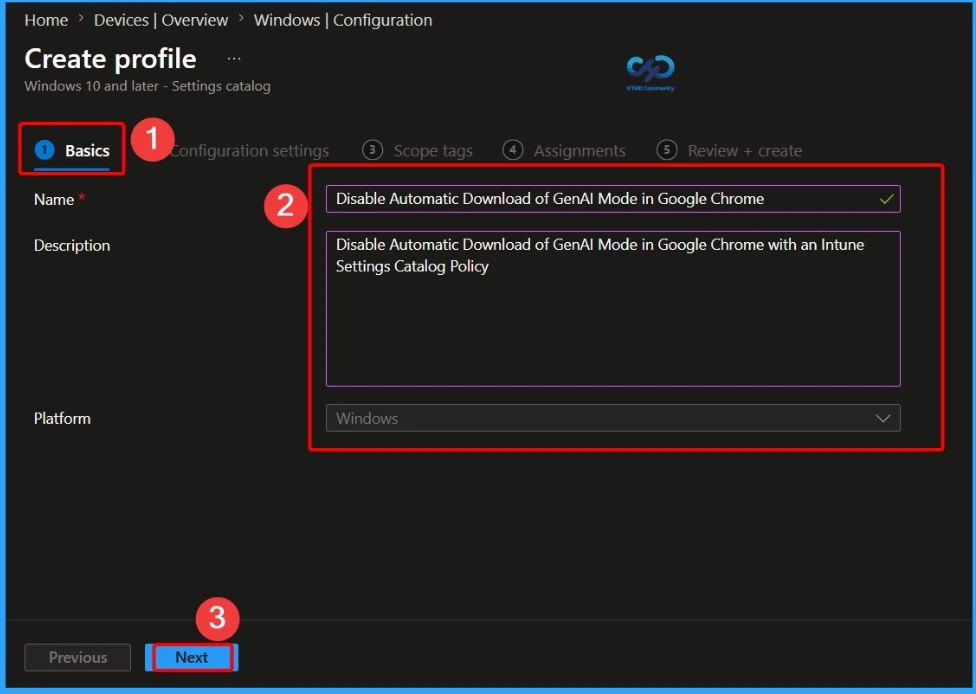
Configure Basic Details for the Google Chrome GenAI Download Policy
In the Basics tab, enter the policy name as Disable Automatic Download of GenAI Mode in Google Chrome. In the description field, add Disable Automatic Download of GenAI Mode in Google Chrome with an Intune Settings Catalog Policy to clearly identify the purpose of the configuration. Ensure the platform is selected as Windows, and then click Next to continue with the policy configuration process.
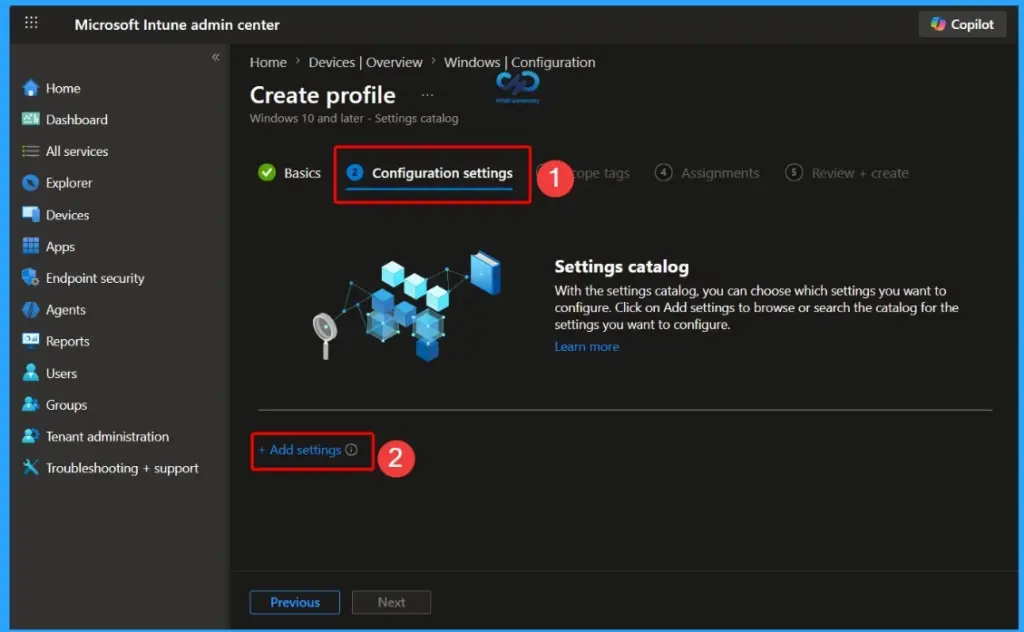
Add Settings in the Configuration Settings Tab
In the Configuration settings tab, click on + Add settings to begin searching and adding the required policy settings for Google Chrome. This step allows administrators to configure and manage Chrome browser policies directly through the Microsoft Intune Settings Catalog.

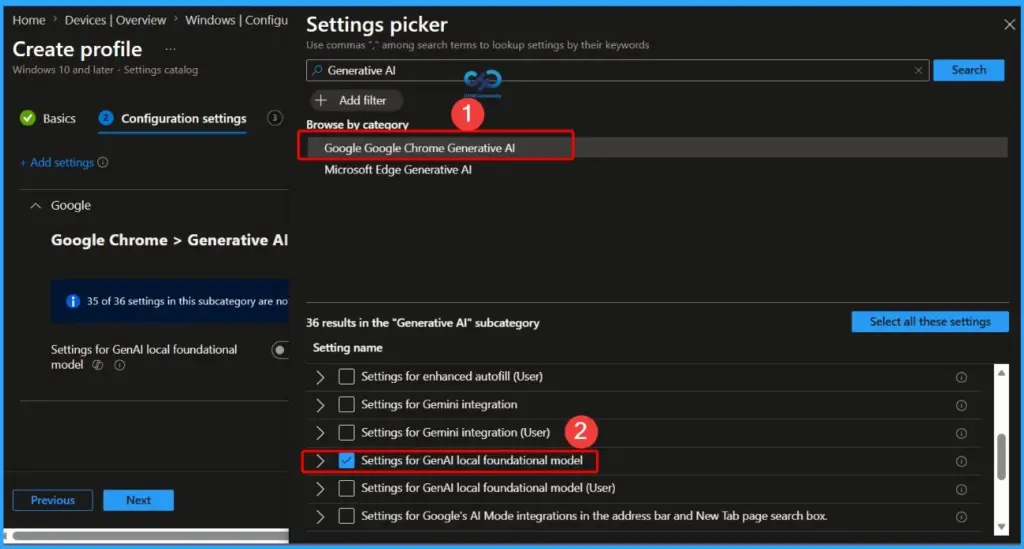
Google Chrome Generative AI Settings in Intune
In the Settings picker window, search for the keyword Generative AI. From the results, select the category Google Chrome – Generative AI. Then enable the setting named Settings for GenAI local foundational model to manage how Google Chrome downloads and uses the local GenAI foundational model on managed Windows devices.
| Settings Name |
|---|
| Settings for GenAI local foundational model |
Settings for GenAI local foundational model
Configure how Google Chrome downloads the foundational GenAI model and uses for inference locally. When the policy is set to Allowed (0) or not set, the model is downloaded automatically, and used for inference. When the policy is set to Disabled (1), the model will not be downloaded. ComponentUpdatesEnabled can also disable model downloading.
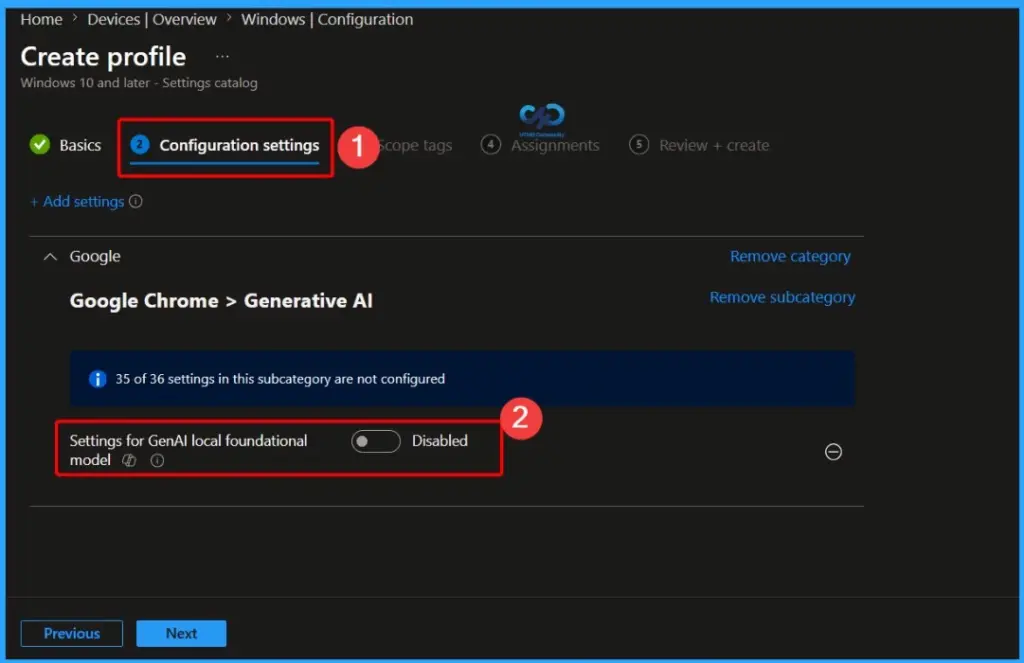
Verify the Default GenAI Local Foundational Model Setting
After enabling the Settings for GenAI local foundational model policy, you can see that the default configuration is set to the Downloads model automatically. This means Google Chrome will automatically download the foundational GenAI model and use it for local AI inference unless the setting is changed by the administrator.
- Settings for GenAI local foundational model (Device) – Do not download model
- Settings for GenAI local foundational model – Enabled
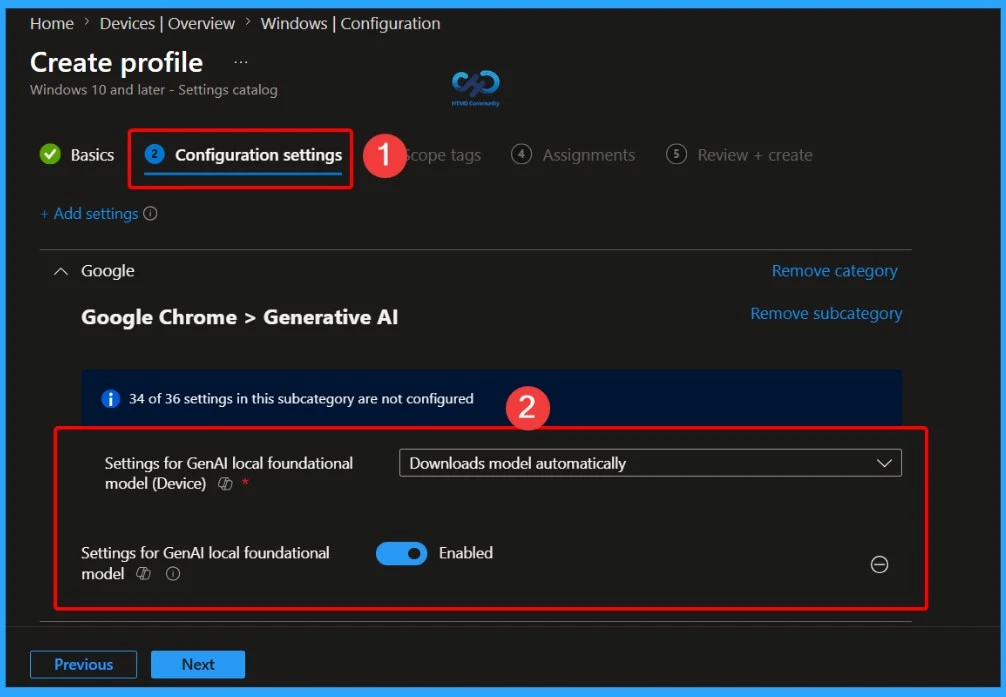
Select the Do Not Download Model Option for Google Chrome GenAI
Here, select the Do not download model option for the Settings for GenAI local foundational model device policy. This configuration prevents Google Chrome from automatically downloading the foundational GenAI model to managed Windows devices, helping organisations control local AI features and reduce unnecessary component downloads.
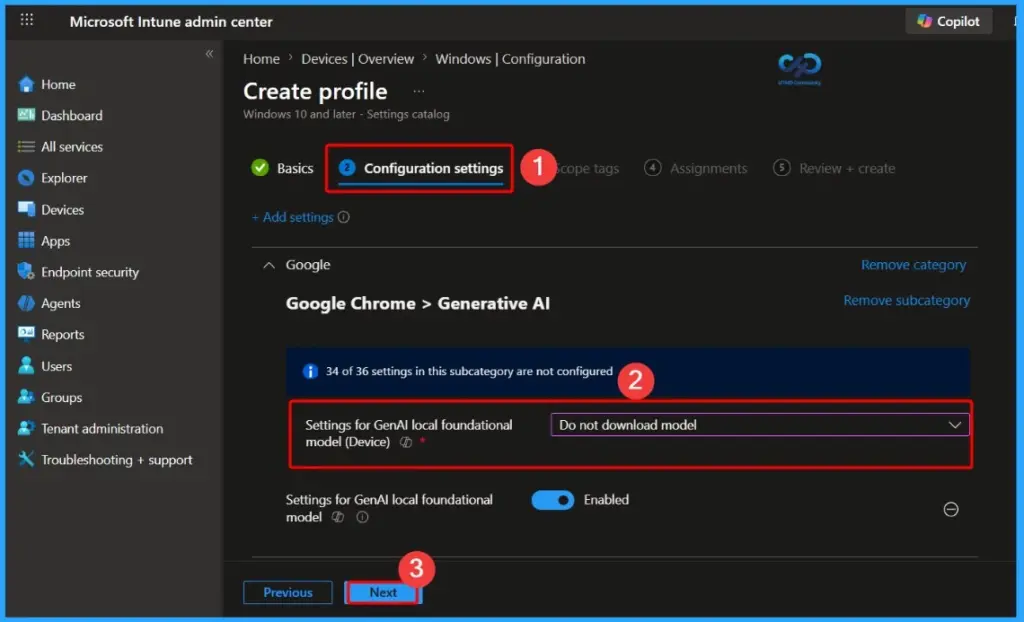
Scope Tag of the Policy
This policy can be assigned with the appropriate Scope tags to control which administrators can view and manage the Disable Automatic Download of GenAI Mode in Google Chrome policy in Microsoft Intune. Using scope tags helps organizations implement role-based administration and ensures that only authorized IT teams have access to manage this Google Chrome Generative AI configuration policy.
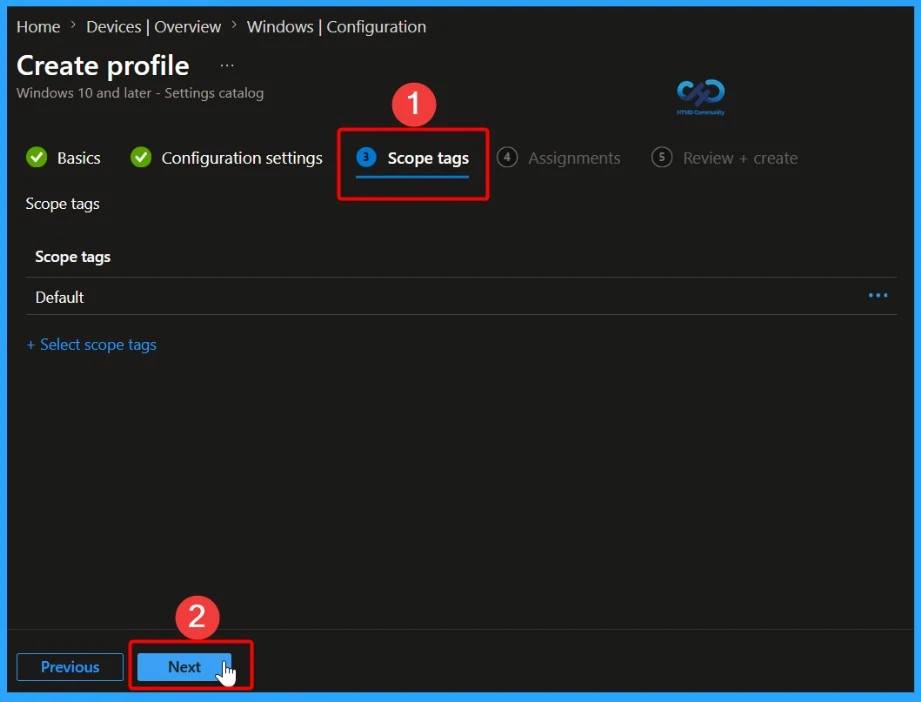
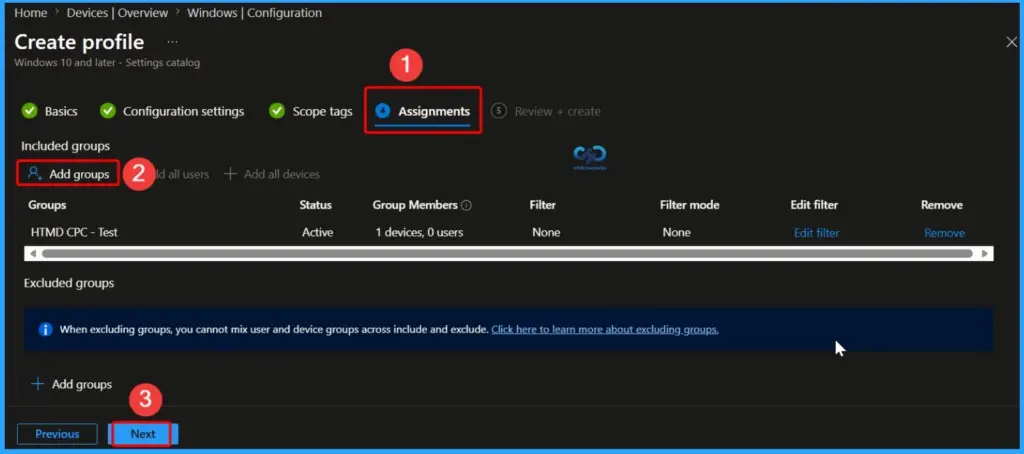
Assign the Google Chrome GenAI Policy to Devices Groups
In the Assignments section, choose the device groups or user groups that should receive the Disable Automatic Download of GenAI Mode in Google Chrome policy. Administrators can deploy the policy to specific test groups, pilot users, or all managed Windows devices based on organizational requirements before completing the policy deployment process.
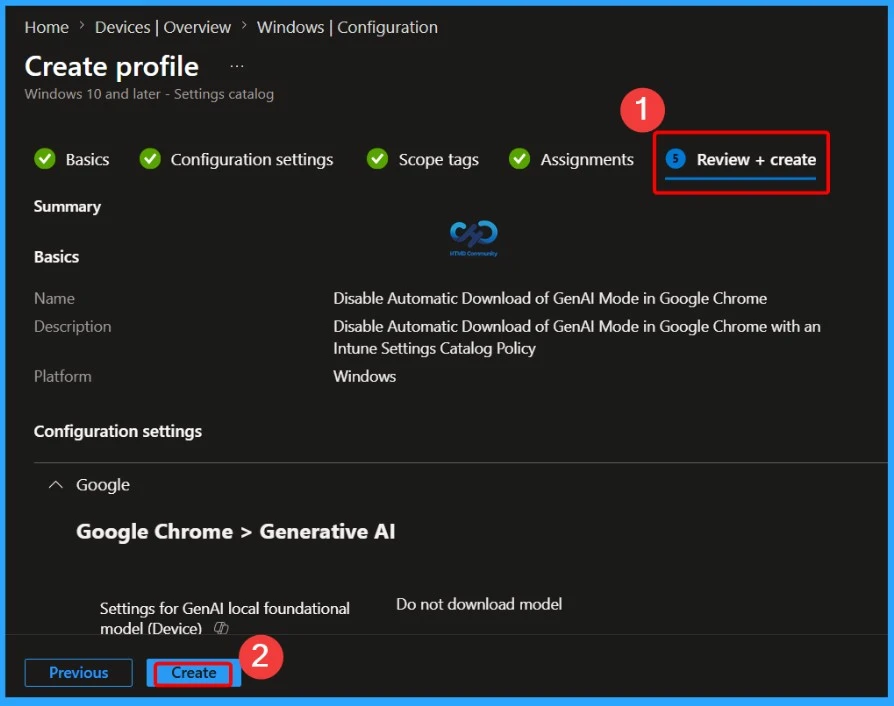
Review and Create the Google Chrome GenAI Policy
In the Review + create tab, verify all the configured settings, assignments, and scope tags for the Disable Automatic Download of GenAI Mode in Google Chrome policy. Once the review is completed and all configurations are confirmed, click Create to deploy the policy
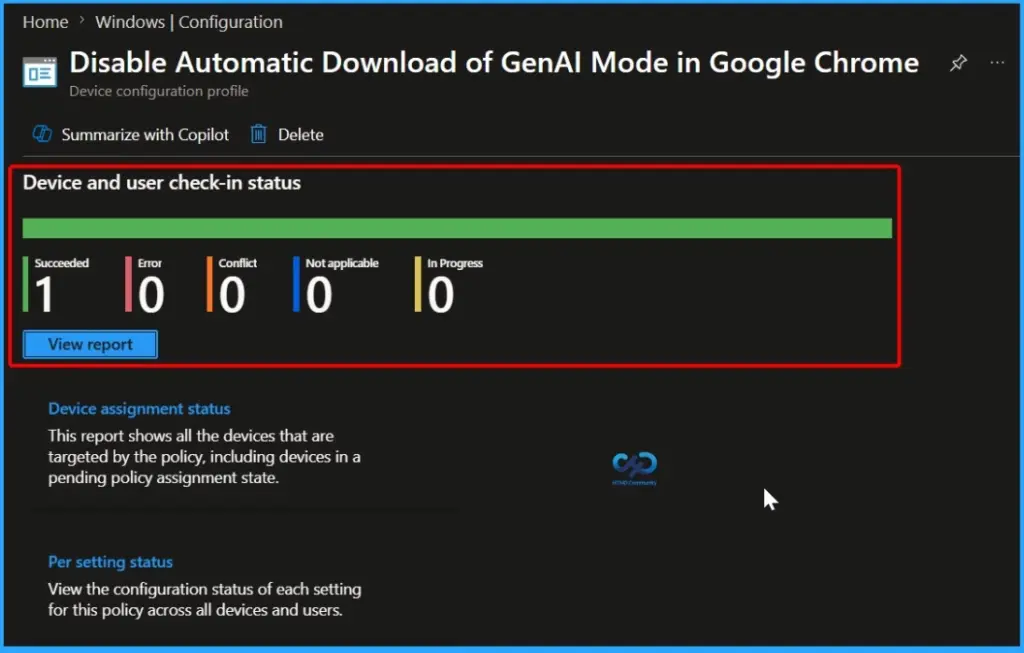
Device and User Check in Status
Microsoft Intune now allows administrators to control the automatic download behavior of GenAI Mode in Google Chrome through device configuration profiles. As shown in the policy status report, the configuration was successfully applied to the assigned device without any errors or conflicts.
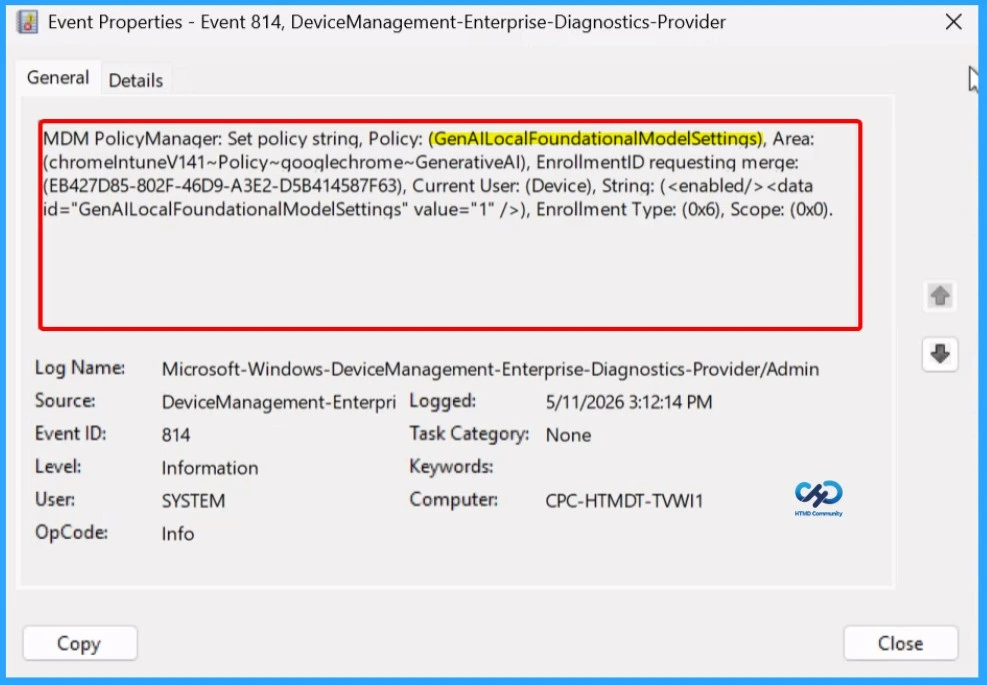
Verify Intune Policy Deployment Status Using Event Viewer
To confirm whether the Intune policy was successfully applied on the device, you can use Event Viewer to check the policy processing logs. Open Event Viewer and navigate to Applications and Services Logs > Microsoft > Windows > DeviceManagement-Enterprise-Diagnostics-Provider > Admin. In this location, look for Event ID 813 or Event ID 814, as these events usually contain details about policy application and configuration status.
- Reviewing these logs helps administrators verify whether the policy was successfully processed or if any issues occurred during deployment.
MDM PolicyManager: Set policy string, Policy: (GenAILocalFoundationalModelSettinqs), Area:
(chromelntuneV141~Policy~googlechrome~GenerativeAl), EnrollmentID requesting merge:
(EB427D85-802F-46D9-A3E2-D5B414587F63), Current User: (Device), String: (), Enrollment Type: (0x6), Scope: (0x0).
Remove Assigned Groups from the Policy in Intune
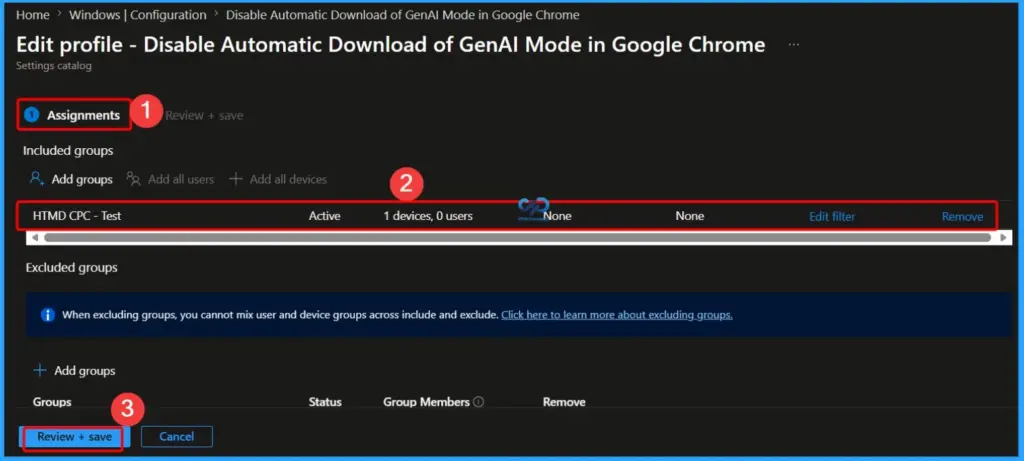
You can easily remove an assigned group from the policy configuration in Microsoft Intune. Open the policy settings, locate the assigned group section, and click the Remove option next to the group name. This action removes the selected group from the policy assignment, preventing the policy from being applied to devices within that group.
Read More – Learn How to Delete or Remove App Assignment from Intune using by Step-by-Step Guide.
How to Delete the Policy
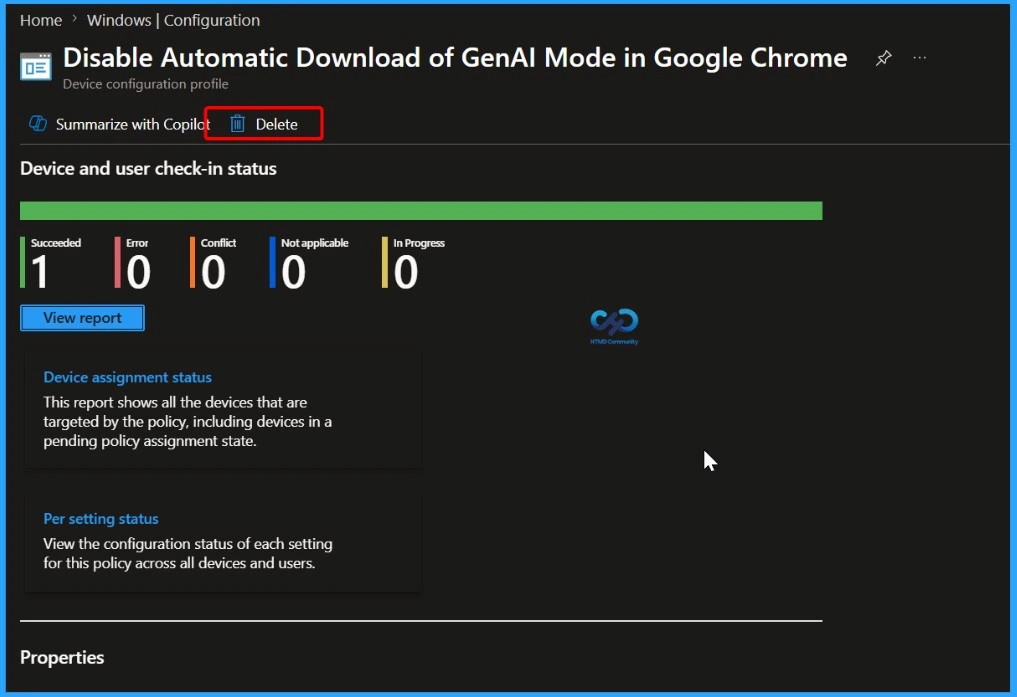
There are multiple ways to delete a policy in Microsoft Intune. In this method, the device policy is removed by accessing the Device and User Check-in Status section of the policy. From there, administrators can review the applied status and proceed with deleting the policy directly from the policy management page. Once deleted, the policy will no longer be applied to the targeted devices or users.
Read More – How to Delete Allow Clipboard History Policy in Intune Step by Step Guide.
Need Further Assistance or Have Technical Questions?
Join the LinkedIn Page and Telegram group to get the latest step-by-step guides and news updates. Join our Meetup Page to participate in User group meetings. Also, join the WhatsApp Community and the Whatsapp channel to get the latest news on Microsoft Technologies. We are there on Reddit as well.
Author
Anoop C Nair is a Workplace Technology solution architect with 25+ years of experience. Microsoft Certified Trainer. Microsoft MVP from 2015 onwards for consecutive 11+ years! He is a blogger, Speaker, and Founder of HTMD Community and HTMD Conference. His main focus is on Device Management technologies like Intune, Windows, and Cloud PC. He writes about technologies like Intune, SCCM, Windows, Cloud PC, Entra, and Microsoft Security.