Using a piece of professional backup software to back up a PC to an external drive is a robust and reliable approach for data protection. We list 7 top backup software for external hard drives in this post, including MiniTool ShadowMaker, EaseUS Todo Backup, and AOMEI Backupper.
Understanding of Backing up PC to an External Hard Drive
Backing up your computer to an external hard drive is a critical step in robust data protection, since it provides a simple and cost-effective way to store copies of data. This approach can help prevent data against ransomware, system crashes, hardware failure, and accidental deletion.
Additionally, external drives offer faster data transfer speeds for backup and recovery, without relying on internet connectivity. Moreover, they provide better privacy, preventing data leaks on public servers.
For this backup purpose, consider using a professional backup tool. The backup software for external hard drives delivers automated backup solutions to keep data consistently protected, rather than simple file copying.
The following are some factors you should consider when selecting such a utility.
Evaluation Criteria of Best Backup Software for External Hard Drive
Essential Functionality
For a smooth and reliable backup experience, ensure the backup software is equipped with core features, including:
- Scheduled backup: Automatically creates backups on a set schedule, such as daily, weekly, or monthly, maintaining up-to-date copies of your data with minimal effort.
- Incremental/differential backup: Only backs up the newly added data or modified files, reducing storage space and improving efficiency.
- Full system imaging: Creates a complete system image on an external hard drive, including the operating system, settings, applications, and personal data, enabling full recovery in case of system crashes.
- File-level backup: Allows you to select specific folders or files for backup, offering more flexibility and control over your data.
- Bootable rescue media: Provides an option to create a bootable CD/DVD or USB drive to perform backup and recovery even when the PC fails to start.
Ease of Use
It is essential to look for backup software for an external hard drive with a clear, intuitive interface, making it easy to set up and manage backups. This can ensure users with limited technical experience can back up PCs quickly and efficiently.
Security
In terms of backup software, encryption is a key feature to protect sensitive data on the external hard drive from unauthorized access. AES (Advanced Encryption Standard) encryption is considered a secure and robust encryption method.
Additionally, advanced software can monitor and block malicious activity from encrypting or corrupting backup files, offering real-time ransomware protection.
Performance
When handling large backups, the software should deliver high-speed data transfer to minimize waiting time and improve overall efficiency. Moreover, ensure it can restore files or the system even when Windows fails to boot.
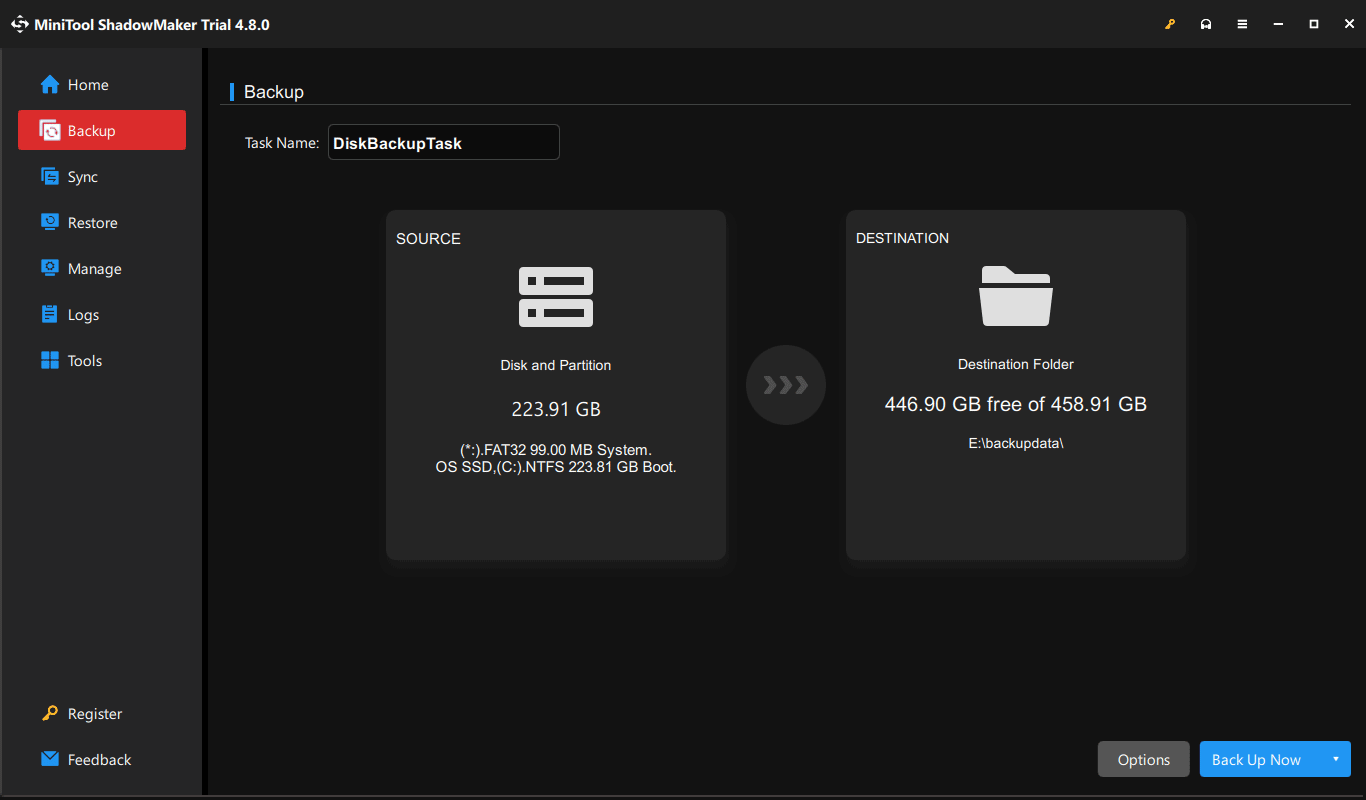
MiniTool ShadowMaker is a simple, beginner-friendly backup and cloning solution, delivering robust PC data protection. Designed for home users and businesses, its clean interface simplifies the workflows, making it easy to create disk imaging backups to an external hard drive.
Known for its comprehensive features and reliability, this external hard drive backup software is a practical choice for users who are looking for efficient and flexible data protection.
Key Features
- Backs up the entire operating system, hard drive, specific partitions, folders, files, and emails; saves backups to an external hard drive, USB flash drive, NAS, network drive, HDD, and SSDs.
- Supports versatile backup types, including full, incremental, and differential backup, allowing only changed data to be backed up for enhanced efficiency.
- Sets up scheduled backups (daily, weekly, monthly, or on an event like user logon/logoff) to automatically protect your data.
- Automatically deletes old backup files depending on a group queue to manage storage space.
- Sets the compression level to medium or high to reduce the image file size.
- Enables password protection with AES-128 encryption to keep backups secure.
- Checks the integrity of the backup version after creation.
- Allows you to back up a system and restore it to a different computer with dissimilar hardware, without compatibility issues.
- Creates a bootable USB drive, CD/DVD, or ISO file for recovery in the event of system failure.
- Supports the sector-by-sector backup mode.
Pros and Cons
| Pros | 1. Features a simple and intuitive interface for easy navigation. 2. Delivers comprehensive protection with advanced features such as automatic/incremental/differential backup. 3. Includes a tool to create WinPE bootable media for disaster recovery. |
| Cons | 1. Lack of cloud integration, only focusing on local backups. 2. Requires the paid Pro Edition to lock some advanced features, such as full/differential backup scheme and Universal Restore. |
Personal Experience
The process of downloading and installing MiniTool ShadowMaker is simple.
After launching, its interface is clean and user-friendly with clearly labeled tabs for each feature to enable easy navigation. Creating a system image and backing up files takes just a few clicks, making the process quick and hassle-free.
It stands out with its support for versatile backup types, including automatic, incremental, and differential backup. This ensures comprehensive protection while striking a balance between backup speed and storage efficiency.
However, this software only supports local backups rather than cloud backups, which may be a limitation for users who prefer off-site data protection.
#2. AOMEI Backupper: Feature-Rich, All-Rounder
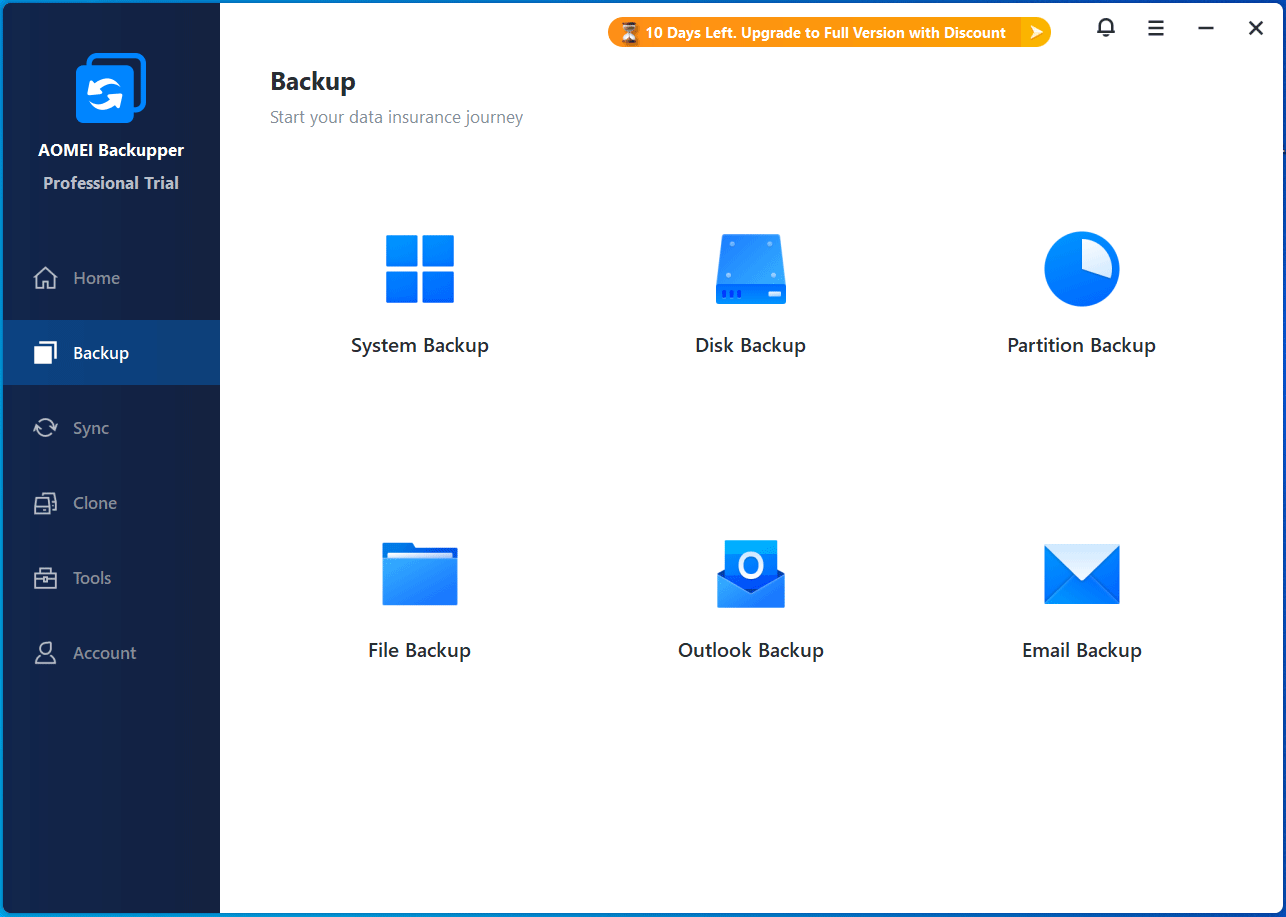
AOMEI Backupper is a feature-rich, all-rounder for Windows PCs and Servers, covering full disk imaging backup, disaster recovery, and disk cloning functionality.
Due to its exceptionally straightforward interface and comprehensive features, this backup software is a viable option for beginners and advanced users seeking simplicity and enough flexibility.
Key Features
- Backs up the entire disk, specific partitions/files/folders, or the operating system for data protection.
- Allows you to only back up changed data to save time and storage space with the incremental or differential backup scheme.
- Runs backup tasks automatically every day/week/month, when plugging in a USB drive or logging on/off the system, or at system startup/shutdown.
- Supports backing up a computer to external hard drives, USB drives, NAS devices, and AOMEI Cloud.
- Performs automatic backup cleanup depending on the configured method, such as by quantity or time.
- Enables you to set the backup method when creating a system/disk/partition backup to only back up the used sectors or create a sector-by-sector backup.
- Creates WinPE bootable media for recovery.
- Deploys or restores image files to multiple computers over the network.
Pros and Cons
| Pros | 1. Offers a clean, straightforward interface, making it easy to navigate for beginners. 2. Includes comprehensive features such as scheduled/differential/incremental backup. 3. Allows creating WinPE bootable media for recovery. 4. Supports restoring system backups to different hardware. |
| Cons | 1. Lack of third-party cloud integration. 2. Requires an upgrade to Pro for Image Deploy and cloning functionality. |
Personal Experience
AOMEI Backupper is an all-in-one Windows utility for backup, recovery, sync, and cloning. Its intuitive and clean layout enhances user usability, allowing for efficient configuration and management of various backup tasks. Even for a novice, the process is effortless.
As professional backup software for external hard drives, this tool supports diverse backup types, flexible backup methods, and wide storage options (AOMEI cloud, NAS, external drives, USB drives, etc.).
By regularly backing up data and creating backups for only changed data, it helps save time and storage space while ensuring up-to-date protection.
Currently, this backup tool doesn’t support third-party cloud platforms, such as Dropbox, Google Drive, and OneDrive.
#3. EaseUS Todo Backup: Simple, Well-Rounded
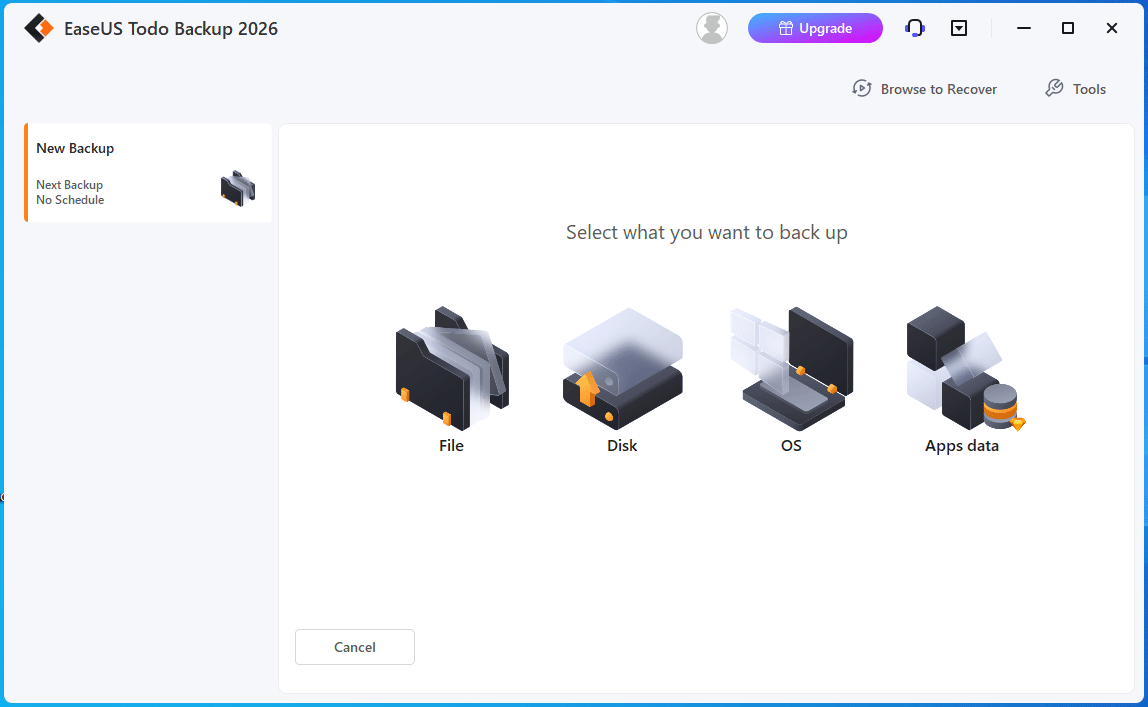
As a simple and well-rounded backup utility, EaseUS Todo Backup provides backup, recovery, sync, and cloning solutions for both home and business users.
It presents a smooth user experience in setting up backup tasks thanks to a clean and streamlined interface and advanced features. It can be a solid choice for robust data protection in both personal and professional use.
Key Features
- Backs up files, operating systems, disks, partitions, and app data (including emails).
- Creates a complete copy (full) and only makes backups for changed data (incremental/differential).
- Uses Smart Backup to automatically back up changed data by monitoring files or folders every 30 minutes.
- Sets a plan to create backups daily, weekly, monthly, or upon an event (at startup/shutdown, user logon/logoff, or USB plugged in).
- Enables image reserve strategy to effectively free up storage space.
- Encrypts backups with a password using the AES-256 algorithm.
- Creates emergency media to restore systems when the system fails to boot.
- Saves backups to external drives, NAS, FTP servers, or cloud platforms such as EaseUS Cloud, Dropbox, Google Drive, OneDrive, pCloud, Amazon S3, and other services.
Pros and Cons
| Pros | 1. Provides a user-friendly interface with guided workflows for easy and hassle-free setup. 2. Supports comprehensive types. 3. Allows backing up to various targets. 4. Includes the Smart Backup feature. 5. Creates WinPE recovery disk. |
| Cons | 1. Limited features in the Free Edition, such as Smart Backup, Filter, and cloning. 2. Relatively slow backup speed in certain scenarios. |
Personal Experience
EaseUS Todo Backup offers a simple download and installation process. Its clean, well-structured interface enables you to easily configure system, disk, file, or app data backups, with minimal effort.
Scheduling, incremental, and differential options are included in this backup software for external hard drives, enhancing automation and improving overall backup efficiency.
Compared to some competitors, performance may not be the fastest. Overall, it provides reliability for essential backup tasks.
#4. Acronis True Image: Premium, Security-Focused
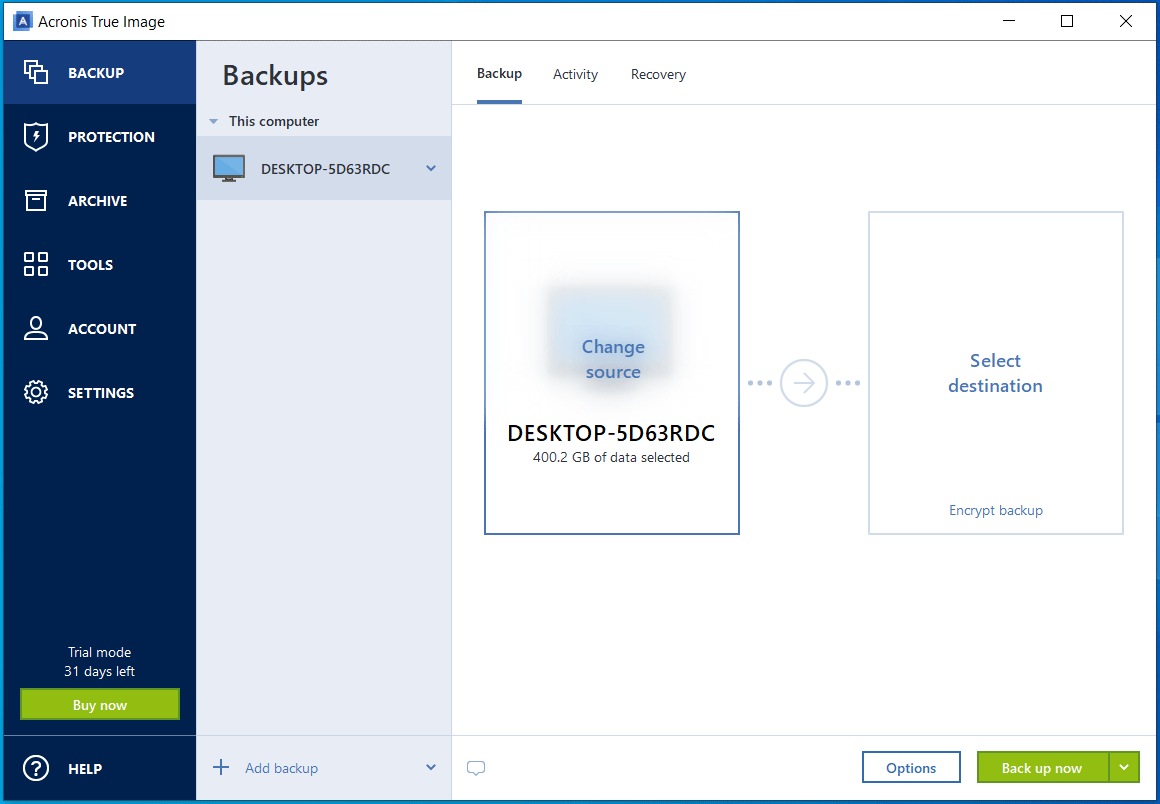
Acronis True Image, a premium, security-focused solution, is designed for individuals and businesses seeking comprehensive data protection.
It integrated reliable full-system imaging and disk cloning with advanced cybersecurity features to protect against ransomware, cryptojacking, and other malicious attacks. Additionally, this backup software provides local and cloud storage options for flexible data protection.
Key Features
- Backs up the entire PC, including the operating system, applications, and data.
- Protects separate disks or partitions and specific files or folders.
- Uses the Blockchain technology to verify the integrity, authenticity, and timestamp of files to ensure they have not been changed or corrupted since they were backed up.
- Backs up photos, videos, and contacts on a mobile device to the PC, and data from Outlook or OneDrive to Acronis Cloud.
- Stores computer backups to Acronis Cloud, external hard drives, FTP servers, network locations, and NAS devices.
- Uses AES-128/192/256 encryption to protect backup privacy.
- Allows scheduling backups based on specific needs, such as daily, weekly, monthly, and upon events.
- Offers various backup scheme options, such as single version, version chain, incremental, differential, and custom schemes.
- Enables automatic cleanup of old backup versions to free up space.
- Archives large and old files and moves them from a PC to an external drive or Acronis Cloud to free up disk space.
- Creates rescue media to restore the system to the same PC or a different PC with dissimilar hardware.
- Provides active protection, runs an antivirus scan, and performs a vulnerability assessment.
Pros and Cons
| Pros | 1. Offers comprehensive backup capabilities (including PC and mobile backup) for flexible data protection. 2. Adds local and cloud backup support. 3. Includes ransomware protection and antivirus features. 4. Customizes backup options for advanced control. 5. Features a clean, simple user interface. |
| Cons | 1. Has a relatively large installation footprint. 2. May use high system resource usage. 3. Primarily available through subscription plans. |
Personal Experience
It is straightforward to install Acronis True Image on the computer, though the installation size is relatively large (about 745MB) compared to other similar tools. This may take some time to download.
After installation, signing in with an email account is required to activate and access its features. The interface is modern and well-organized with a wide range of features and customized options.
It allows you to create a full system image, back up files, the entire PC, and specific partitions, and save backups to the local and cloud locations. The tool also includes built-in protection features to safeguard against ransomware.
Overall, Acronis True Image delivers reliable backup and recovery performance, suitable for users requiring advanced data protection.
#5. Paragon Backup and Recovery: Reliable, Versatile
Known as a reliable, versatile tool, Paragon Backup and Recovery offers solid backup and recovery capabilities, suitable for both personal and business use.
It focuses on full disk imaging backups with versatile features and recovery options, ensuring reliable system recovery and consistent data protection in various scenarios.
Key Features
- Creates a backup of the entire computer, individual disks and volumes, or individual files and folders.
- Allows you to select different locations to store backups, such as local folders, external drives, and network locations (SMB Share, Amazon S3 compatible, and Azure).
- Schedules backups to have up-to-date restore points based on an event (including system start and user logon) or a specific time, such as daily, weekly, and monthly.
- Effectively backs up only changed data via the incremental or differential option, while deleting old backups by setting the retention strategy.
- Saves backups as a virtual disk format, such as .pvhd, .vmdk. vhd, and vhdx.
- Uses Recovery Media Builder to prepare a WinPE bootable version of this product on a USB drive or in an ISO file.
Pros and Cons
| Pros | 1. Includes a recovery media builder. 2. Supports broad storage options. 3. Offers comprehensive features. |
| Cons | 1. Features a less modern interface compared to competitors. 2. Presents a less intuitive recovery process. |
Personal Experience
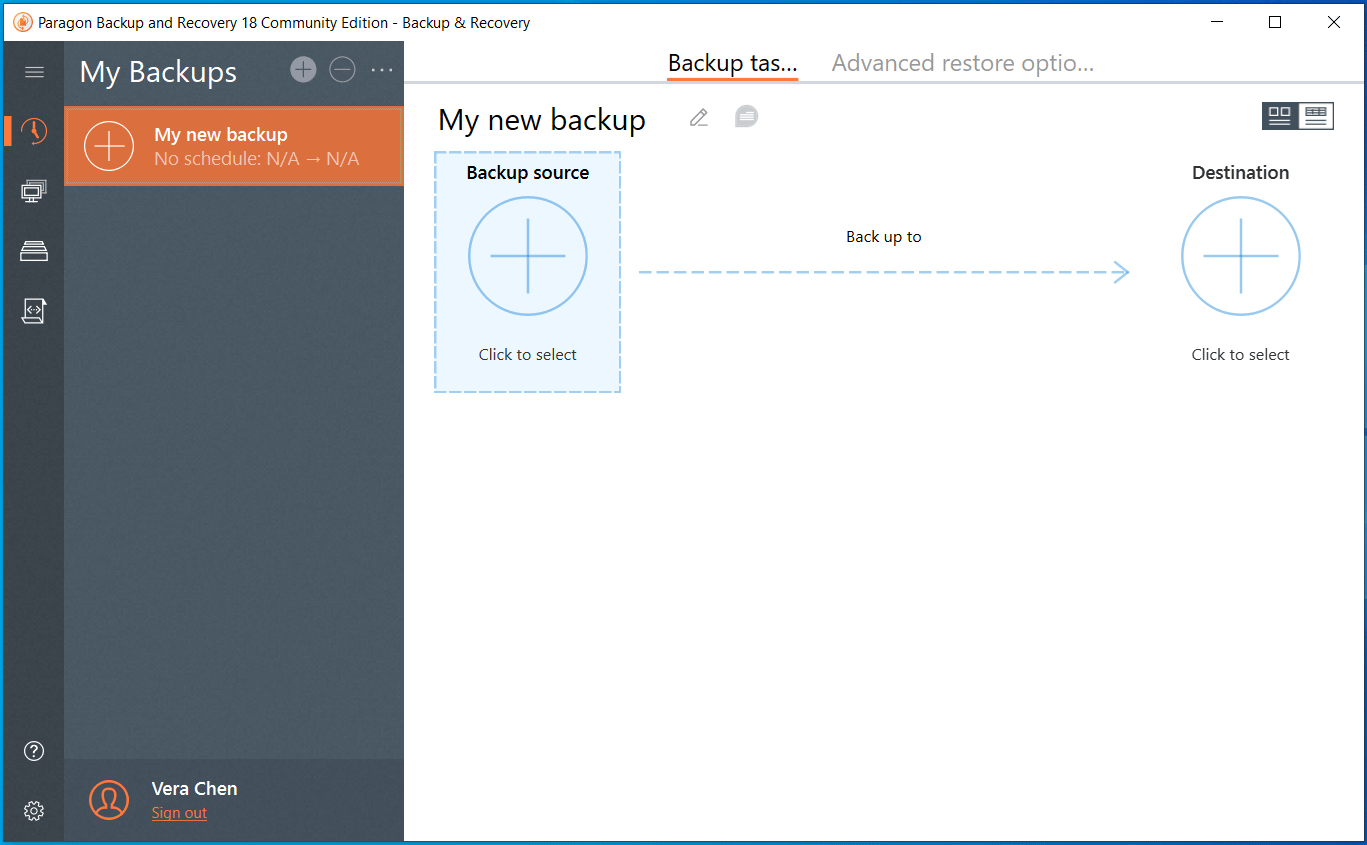
After launching Paragon Backup and Recovery Community Edition, authentication via a third-party account (Google or Microsoft) is required to access its features.
While its interface may feel less modern, it remains functional and provides a clear layout for navigating and configuring backup tasks, with flexible options.
By configuring a backup strategy, the balance between the optimal backup storage utilization and restore speed can be effectively achieved.
However, the recovery process may require a learning curve, and some users may need time to get familiar with the workflow.
#6. Macrium Reflect: Advanced, Pro-Level
Macrium Reflect, an advanced, pro-level utility for Windows, excels in disk imaging and cloning. It can protect computers by creating reliable image backups with comprehensive features and flexible backup strategy customization.
Robust backup and recovery performance make it a reliable choice for advanced data protection. This backup software for external hard drives can be compatible with Windows 11/10 and Windows Server 2025/2022, supporting both personal and business environments.
Key Features
- Secures the entire system or specific files/folders/disks/partitions by creating image files.
- Only captures data changes to create differential or incremental backups, rather than executing full backups every time.
- Schedules automatic backups depending on specific times or event triggers.
- Supports AES-128/192/256 encryption for backups.
- Blocks ransomware and unauthorized deletion using Macrium Image Guardian, ensuring data integrity and security.
- Speeds up recovery by restoring only the modified data blocks through the Rapid Delta Restore feature.
- Automates the backup storage management to delete old image files.
- Supports open-source file formats (.mrimgx & .mrbakx), allowing data access without the proprietary software.
Pros and Cons
| Pros | 1. Delivers comprehensive backup features. 2. Presents fast backup performance and reliable recovery. 3. Includes encryption and ransomware protection. 4. Allows recovery even when the system fails to boot using bootable rescue media. |
| Cons | 1. Lacks native cloud backup options. 2. Features a less intuitive interface, slightly complex for beginners. |
Personal Experience
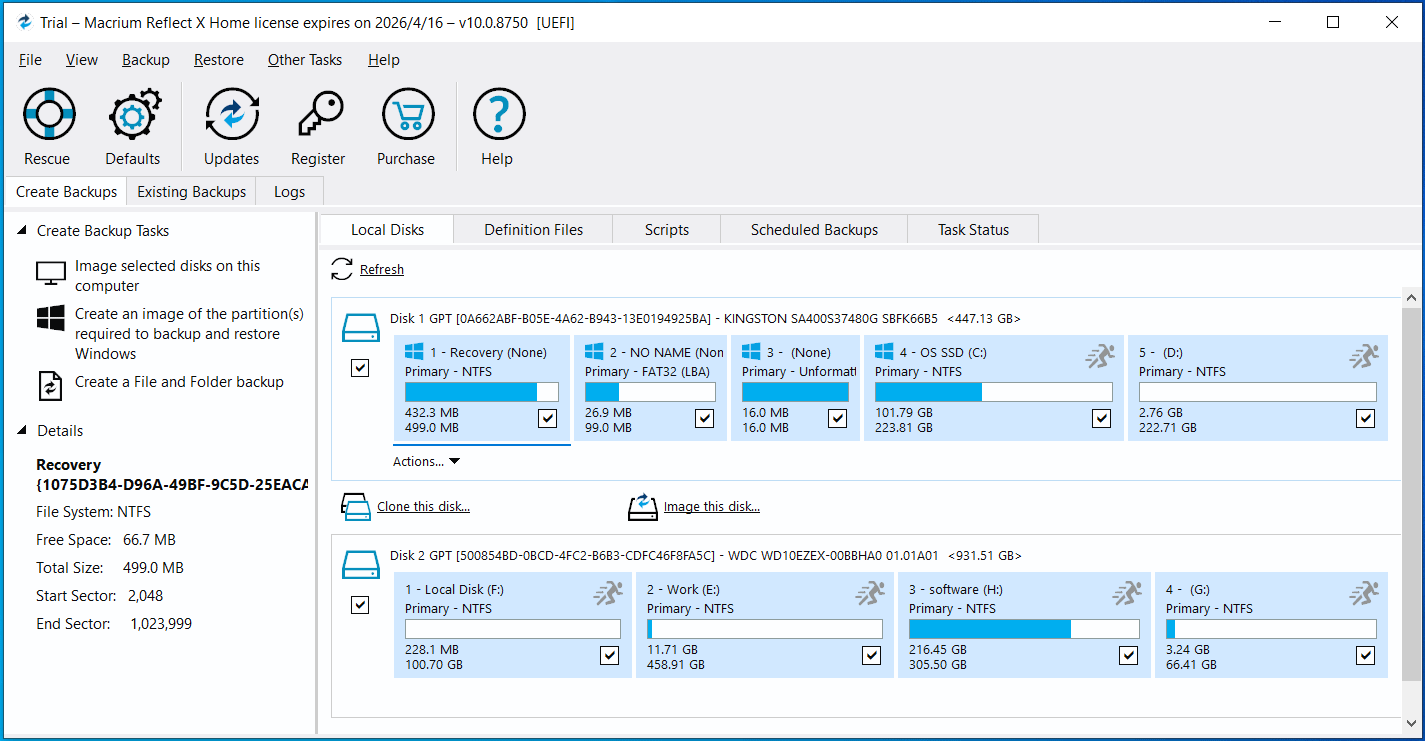
Installing Macrium Reflect involves multiple steps, requiring account setup and email verification. Once installed, the interface is well-organized but somewhat technical, which may take some time to get used to. For beginners with limited experience, it may feel less intuitive.
It has extensive features to create system, disk, and file backups, along with incremental and differential options for flexible protection. In most scenarios, performance is reliable and efficient.
#7. Hasleo Backup Suite: Lightweight, Free
Known as a lightweight, free utility, Hasleo Backup Suite is designed for Windows PC and Servers to provide backup, recovery, and cloning functionality.
This external hard drive backup software offers comprehensive protection for disk data with flexible options, making it a practical solution for home and business users.
Key Features
- Backs up the Windows system, individual files and folders, the entire hard drive, or specific partitions to an image file.
- Runs the scheduled backups every day/week/month or when the specified event occurs, such as system startup/shutdown.
- Performs full, incremental, or differential backups while deleting old backups by following the image retention policy.
- Configures advanced options, such as sector-by-sector backup, checking the integrity of the image file, encrypting the backup with AES-256, etc.
- Supports NTFS, FAT32, exFAT, and ReFS file systems.
- Supports Delta Restore to restore only the changed blocks on the target drive.
- Helps restore the system to computers with different hardware.
- Enables conversion between MBR and GPT disks during restoration.
Pros and Cons
| Pros | 1. Offers a full suite of backup, restoration, and cloning tools with no hidden costs in the Free Edition. 2. Includes a WinPE emergency disk creation tool. 3. Supports multiple backup types with flexible scheduling options. |
| Cons | 1. Offers a relatively basic and less modern user interface. 2. No native cloud backup support. |
Personal Experience
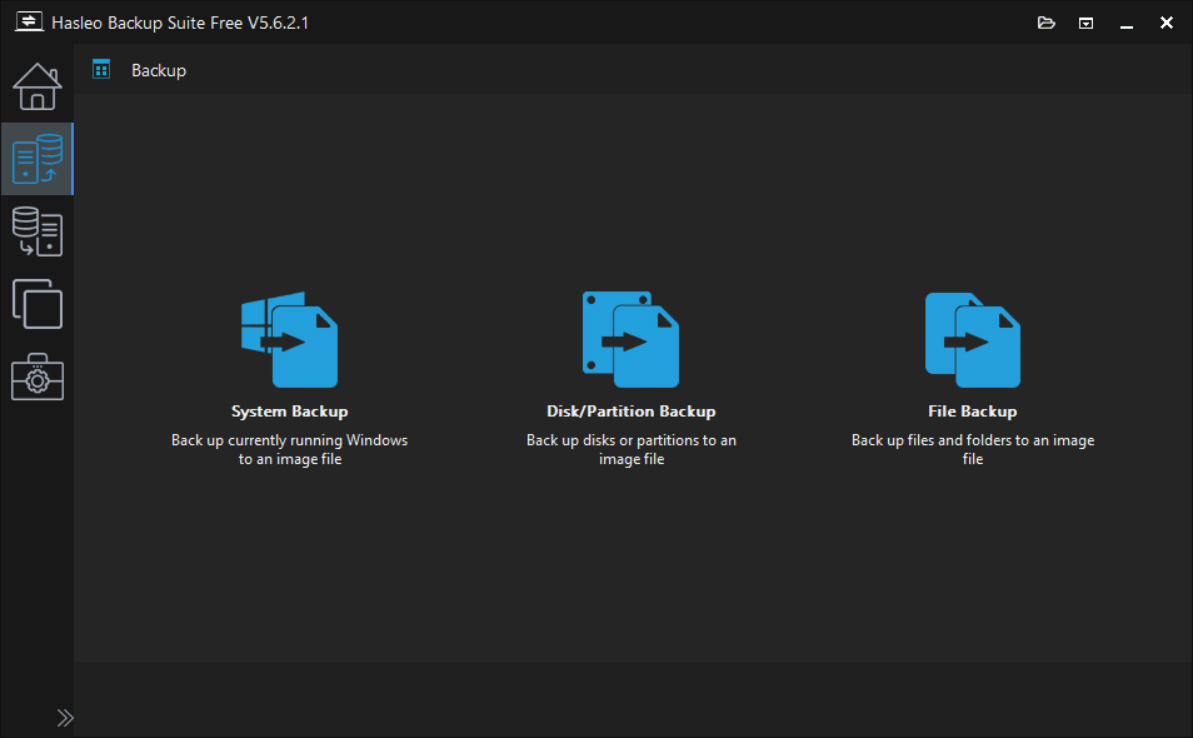
Hasleo Backup Suite provides a clear layout on its interface, though it may appear slightly outdated. It is easy to navigate for beginners, enabling quick setup of system, disk, and file backup tasks.
With incremental and differential options, this software improves efficiency by backing up only changed data. Additionally, its Delta Restore feature speeds up the restoration speed by restoring only the modified data.
Overall, Hasleo Backup Suite is a fast, reliable, and truly free alternative to paid imaging software.
Comparison Summary
| Software | Best For | Key Highlights | Ease of Use | Cloud Backup |
| MiniTool ShadowMaker | Beginners/home users. | Simple, beginner-friendly. | High. | No. |
| AOMEI Backupper | All-round users. | Feature-rich, flexible. | High. | Limited, only supports AOMEI Cloud. |
| EaseUS Todo Backup | Individuals/businesses. | Cloud + local backup. | High. | EaseUS Cloud, Dropbox, Google Drive, OneDrive, etc. |
| Acronis True Image | Advanced/business. | Security + backup integration. | High. | Limited, only supports Acronis Cloud. |
| Paragon Backup and Recovery | Basic users. | Lightweight, stable. | Moderate. | Limited, supports Amazon S3 compatible, and Azure. |
| Macrium Reflect | IT professionals. | High performance, advanced control. | Low. | No. |
| Hasleo Backup Suite | Free users. | Fully free, solid features. | Moderate. | No. |
Conclusion
This post has reviewed the top 7 backup software for external hard drives. Choosing the right one depends on the specific needs. F
For beginners, use MiniTool ShadowMaker and AOMEI Backupper. For a balance between usability and features, run EaseUS Todo Backup.
For advanced users and IT professionals, Macrium Reflect and Acronis True Image are suitable. To use a completely free yet capable solution, Hasleo Backup Suite Free and Paragon Backup and Recovery Community can be practical options.
Backup Software for External Hard Drive FAQ
What is the 3/2/1 rule for backup?
What is one drawback of using an external hard drive for backup?
The major demerit of using an external hard drive for backup lies in the physical damage. The external drive is portable and can be easily dropped, causing data loss.
What is the best way to back up a computer to an external hard drive?
The best way to back up a computer to an external drive is using a piece of dedicated backup software that supports scheduled/incremental/differential backup options. These tools can capture changes to the data regularly, offering flexible data protection.
Does Windows 11 have a backup program?
Yes, Windows includes built-in backup tools. They are File History for automatic file backups, Backup and Restore (Windows 7) for full system images, and OneDrive for cloud syncing.