To maintain data security, regularly backing up personal files is necessary. This post introduces 7 personal file backup software, including MiniTool ShadowMaker, EaseUS Todo Backup, AOMEI Backupper Standard, and Acronis True Image.
Personal File Backup
Personal file backup means creating copies of important data, such as documents, photos, and videos, and storing them in a separate location like an external drive or cloud storage. It helps protect users’ files and allows quick recovery if the original data is lost.
Data loss can happen due to cyberattacks, system errors, or hardware failure. Without backups, important files may be permanently lost. Regular backups reduce risk and ensure users’ data remains accessible.
Personal file backup software simplifies this process. It automates backups, lets users select files and storage locations, and offers features like incremental backup, encryption, and version control for better efficiency and security.
What Is File-Level Backup? [Pros and Cons]
What is file level backup? Is it necessary to take a file-level backup for your data? Get answers from this post now!
Read More
Key Criteria for Selecting Personal File Backup Software
When choosing personal file backup software, evaluate its reliability, usability, and effectiveness. A good solution protects data, ensures efficient backups, and offers flexible recovery. Key criteria include:
Backup Types
Prioritize software that focuses on backing up files and folders instead of performing full system imaging. This approach enables faster backup and recovery of personal data, such as documents, photos, and videos, while minimizing unnecessary system overhead.
Automation & Scheduling
Reliable automation features enable backups to run automatically in the background. Look for flexible scheduling options – such as daily, weekly, or event-triggered backups – to keep users’ files consistently updated.
Security
Implementing strong security measures is crucial. Encryption safeguards users’ data from unauthorized access, while integrated ransomware protection prevents malicious software from altering or encrypting users’ data.
Ease of Use
An easy-to-use interface streamlines setup and management for non-technical users. Simple navigation and guided backup procedures minimize the risk of configuration errors.
Storage Support
Flexible storage solutions offer enhanced versatility. Reliable backup software should support local drives, external storage devices, and NAS, with optional cloud integration for off-site protection.
Recovery Flexibility
When evaluating personal file backup software, recovery flexibility is crucial. It should support full system restoration and individual file recovery, along with versioning to revert files to previous states.
The software should allow data recovery across different devices, feature a fast, user-friendly recovery process, and offer preview options for checking files before restoration.
Performance & Resource Impact
When selecting the best personal file backup software, performance and resource impact are key factors for maintaining a smooth workflow. High-quality software should follow these principles:
The program must minimize CPU and memory usage during backups. It should run quietly in the background without interrupting the users’ system performance.
For efficient data handling, the software needs to provide fast backup and restore speeds. It must also optimize performance for large files and datasets. Finally, the tool should support bandwidth throttling to reduce its impact on users’ networks.
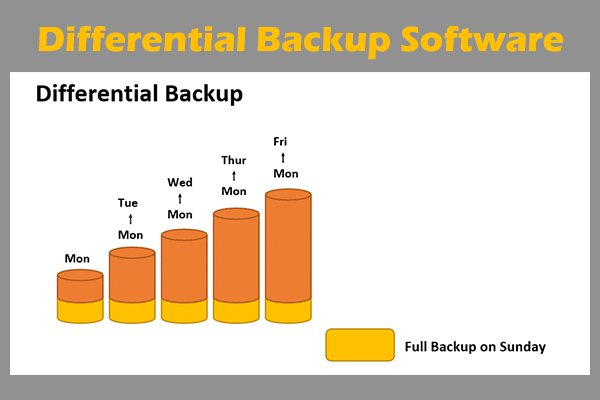
Top 7 Differential Backup Software for Windows (PC & Server)
This post introduces 7 best differential backup software for Windows PCs & Servers to back up only changed data since the last full backup.
Read More
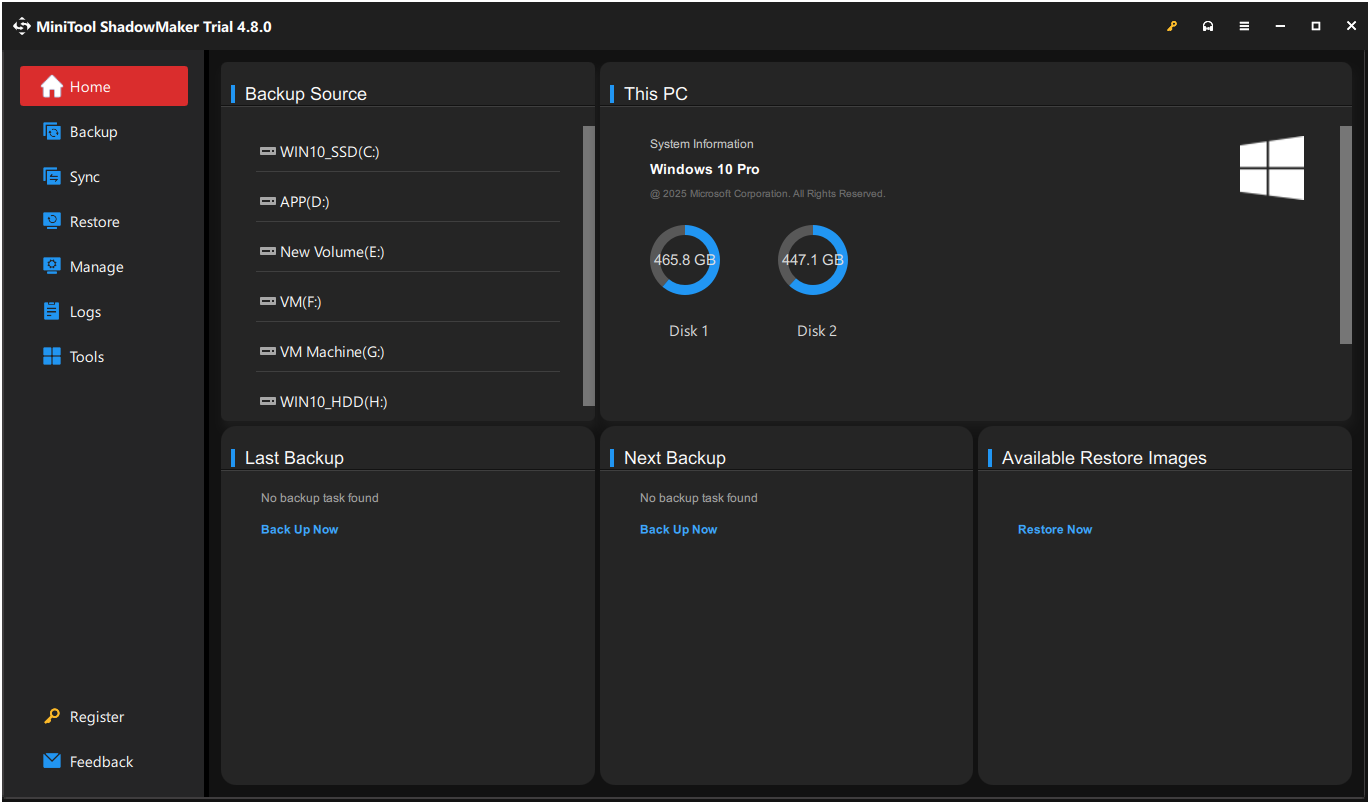
MiniTool ShadowMaker simplifies data protection with its easy-to-use backup tools and intuitive sidebar featuring large icons, eliminating complex menus. This makes the complex backup process accessible to beginners.
It offers one-click operations for users to back up the system, disks, partitions, folders, and files. Additionally, it provides features to help users clone a disk and sync files with ease.
Key Features
- Enables full, incremental, and differential backup modes to reduce time and storage usage.
- Automates backup tasks based on schedules or trigger events like login and logout.
- Verifies backup integrity immediately after completion.
- Stores backup images on external drives, USB devices, network locations, or NAS.
- Manages storage with retention rules that remove outdated backups automatically.
- Performs sector-by-sector backups, including both used and unused disk space.
- Secures backup data with AES-128 encryption and password protection.
- Restores system images to different hardware using Universal Restore.
- Mounts backup images as virtual drives for direct file browsing and recovery.
Pros and Cons
Pros:
- Provides a user-friendly interface with a simple workflow.
- Delivers fast backup and restore speeds, especially for disk imaging.
- Covers basic backup features in Free Edition.
- Includes system backup, disk cloning, and recovery tools.
- Supports incremental backup and scheduling.
Cons:
- Limits file-level backup features in specific editions.
- Restricts advanced options, such as encryption, in Free Edition.
- Focuses mainly on Windows, offering limited cross-platform support.
- Requires paid plans for features like differential backup and universal restore.
- Offers fewer advanced capabilities compared to more mature tools.
Personal Experience
MiniTool ShadowMaker has a modern interface with a clear layout. Key features are easy to find, even for first-time users.
The free edition includes many functions, such as system backup, file sync, disk clone for non-system disks, and scheduled backup. It offers flexible backup plans. Performance is stable and fast.
However, the free edition does not support AES encryption for backup images. This reduces data security. Promotional prompts to upgrade to the Pro edition may appear at times.
# 2. EaseUS Todo Backup: Versatile, Well-Balanced
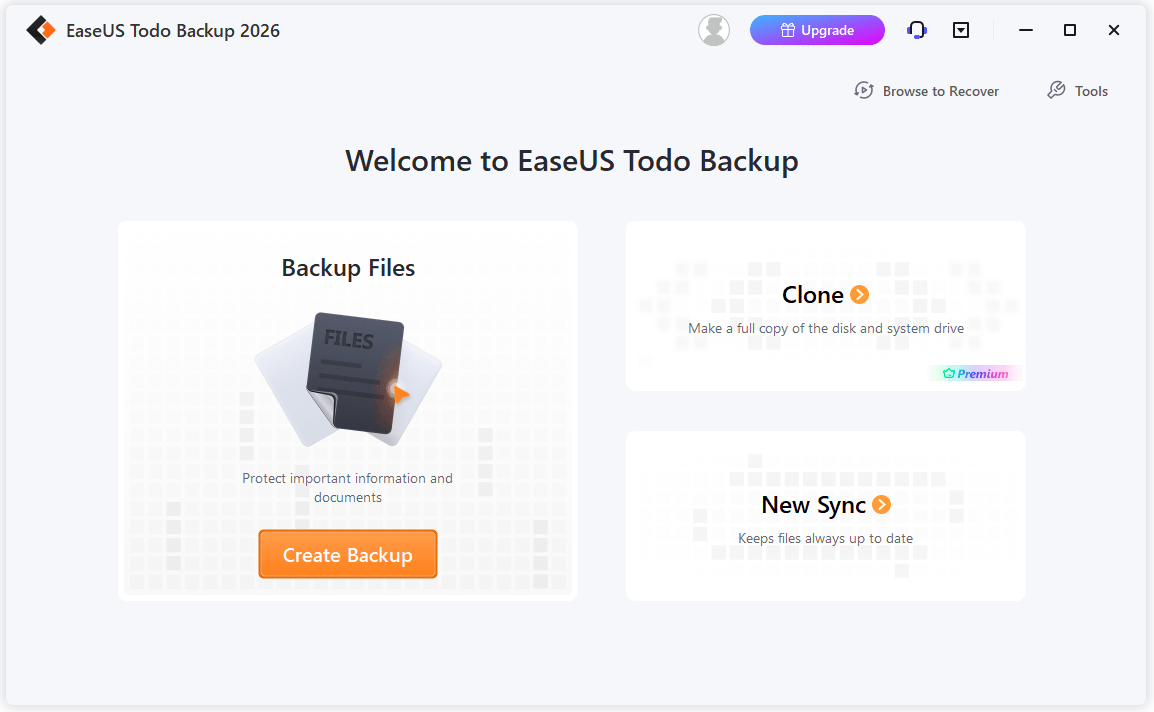
EaseUS Todo Backup is a versatile and well-balanced backup tool that supports full, incremental, and differential backups for systems, disks, and files.
It supports storing backups to local, external, network, and cloud storage, and includes useful features like disk cloning and system migration.
The interface is simple and easy to use, while still offering advanced options such as encryption and compression. It runs efficiently and provides reliable protection, making it suitable for both beginners and advanced users.
Key Features
- Supports full, incremental, and differential backups, flexibly balancing speed and storage usage.
- Backs up the system, disks/partitions, and individual files or folders.
- Supports automatic backups, which can run on a schedule or be triggered by specific conditions.
- Provides disk cloning and system migration functions for easy replacement of hard drives or device upgrades.
- Supports local hard drives, external devices, network locations, and cloud storage.
- Features encryption and compression functions to enhance data security and save space.
- Supports backup verification and recovery to ensure data integrity.
- Features an interface for easy operation, making it suitable for users of all levels.
Pros and Cons
Pros:
- Supports system, disk, and file backups with multiple methods.
- Enables incremental and differential backups to save time and space.
- Offers a simple interface for easy use.
- Enables automatic backup scheduling.
- Includes disk cloning and system migration features.
- Supports encryption and compression for better security.
Cons:
- Offers limited features in the free edition and requires a paid subscription for advanced functions.
- Takes a long time to back up large files or the entire system.
- Involves slightly more steps in the recovery process in some cases.
Personal Experience
EaseUS Todo Backup is suitable for home users who need to back up personal files. The interface is simple and clear. The operation is easy to follow.
The free edition includes useful features, such as system image backup, disk and partition backup, and scheduled tasks. It also supports multiple backup destinations. A WinPE emergency disk can be created with one click.
However, the free edition offers slower transfer speeds. The system clone feature requires payment. Upgrade pop-ups may appear from time to time, which affects the user experience. Resource usage is slightly high during operation.
# 3. AOMEI Backupper Standard: Comprehensive, Feature-Packed
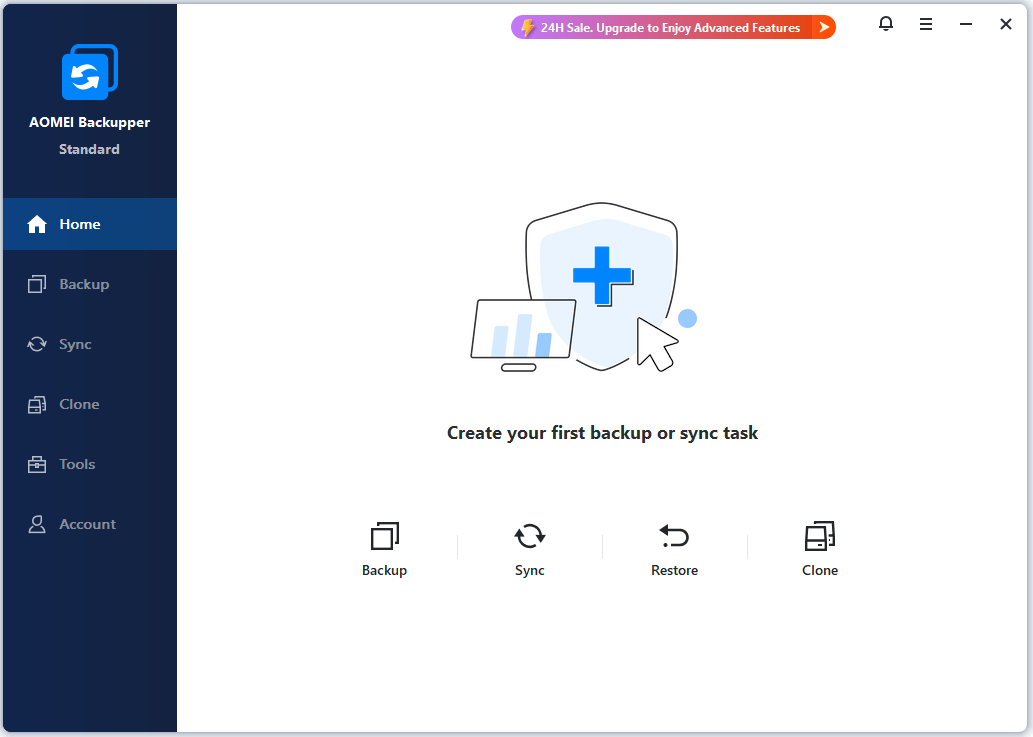
AOMEI Backupper Standard is a comprehensive and feature-packed backup solution that supports system, disk, partition, and file backups with full, incremental, and differential methods.
It also includes useful features like disk cloning, system restore, bootable media creation, and basic sync. Even in its free edition, it provides scheduled backups, compression, encryption, and support for multiple storage locations, all in a simple, user-friendly interface.
Key Features
- Supports system, disk, partition, and file backups for full data protection.
- Offers full, incremental, and differential backups to improve efficiency and save space.
- Enables disk cloning for system migration and drive upgrades.
- Provides file sync and automatic backup scheduling across multiple storage locations.
- Supports one-click recovery and bootable media creation for disaster recovery.
- Includes compression and backup image verification tools for better management.
Pros and Cons
Pros:
- Provides comprehensive backup for system, disk, and files.
- Improves efficiency with incremental and differential backups.
- Enables cloning and system migration.
- Supports automatic scheduling and flexible storage.
- Allows for simple and easy operation.
Cons:
- Limits free features; requires a paid upgrade for advanced ones.
- Slows down when backing up large files or full systems.
- Requires multiple steps in some recovery cases.
- Designed for Windows only, with no cross-platform support.
Personal Experience
AOMEI Backupper Standard has a clean and simple interface. The layout is clear and easy to understand. Basic backup tasks can be completed in a few clicks.
It supports system image, incremental backup, and scheduled backup in the free edition. It also allows for the creation of WinPE rescue media. This feature set is strong for a free tool. It supports storing backups to different devices and has wide compatibility.
Backup speed is relatively slow. Large folders may take a long time to complete. Pop-up messages for upgrading to the paid edition may appear at times.
The Ideal Backup And Disaster Recovery Strategy For SMEs
The practical backup and disaster recovery strategy could play an important role in an enterprise’s life and death sometimes.
Read More
# 4. Acronis True Image: Premium, Security-Driven
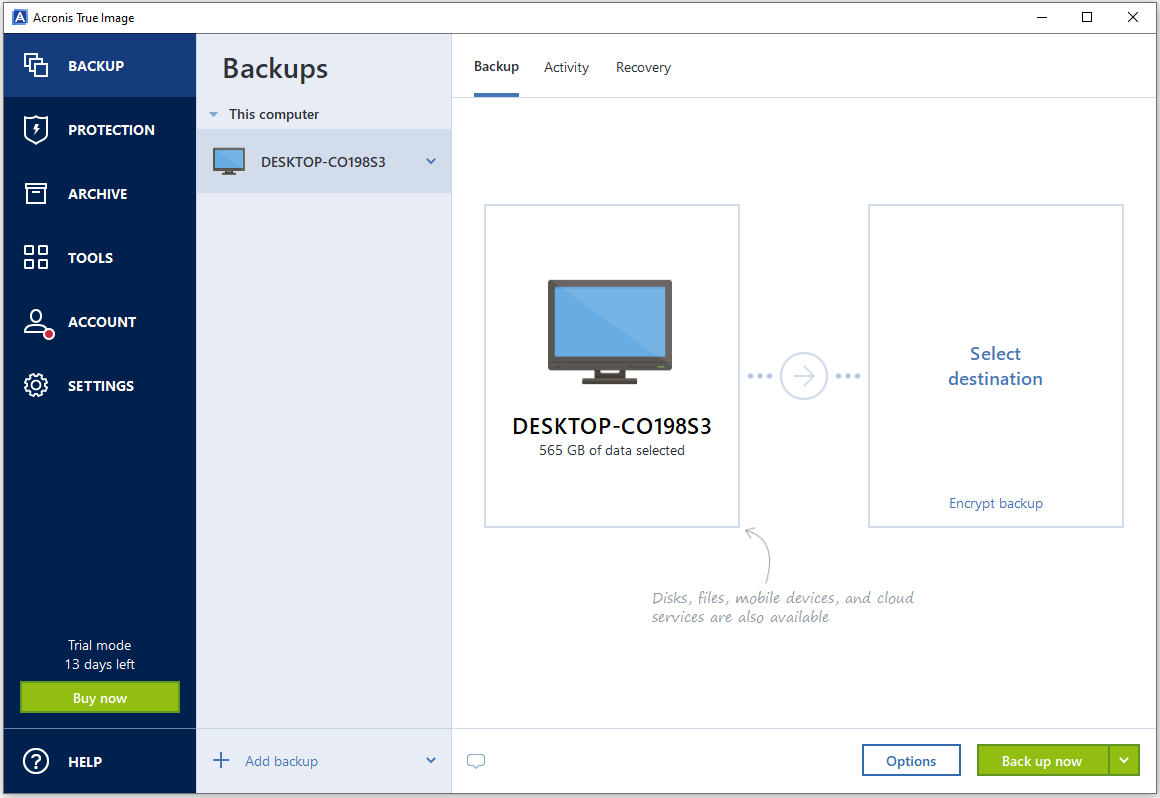
Acronis True Image is a premium backup tool with strong security features. The personal backup software provides full system backup and protects data from cyber threats.
Real-time ransomware protection and malware detection are included. Cloud backup, disk cloning, fast recovery, and data encryption are also supported.
This tool is a reliable choice for users who need both backup and security.
Key Features
- Provides complete system, disk, partition, and file backups.
- Integrated ransomware and malware protection.
- Supports cloud and local backups.
- Offers fast recovery and system restore capabilities.
- Supports disk cloning and system migration.
- Protects data security using encryption technology.
- Provides automated backup schedules, reducing manual operations.
- Offers an integrated protection solution that combines backup and network security.
Pros and Cons
Pros:
- Provides full system, disk, and file backup and recovery.
- Integrates ransomware and malware protection.
- Supports cloud and local backup storage.
- Enables disk cloning and system migration.
- Allows for fast recovery with minimal downtime.
Cons:
- Requires subscription, increasing overall cost.
- Consumes high system resources, affecting performance.
Personal Experience
Acronis True Image is an all-in-one backup solution. It goes beyond basic backup and adds security protection and data management. It works as a comprehensive utility instead of a simple tool. It delivers fast backup and recovery performance while supporting multiple operating systems and devices.
The price is higher than most similar tools. It uses a subscription model, which increases long-term cost. Resource usage is also high during operation. The feature set may feel excessive for simple file backup needs.
Different Types of Ransomware & How to Protect Your Computer
This post introduces different types of ransomware. Besides, you can know how to prevent ransomware and how to protect your computers in this post.
Read More
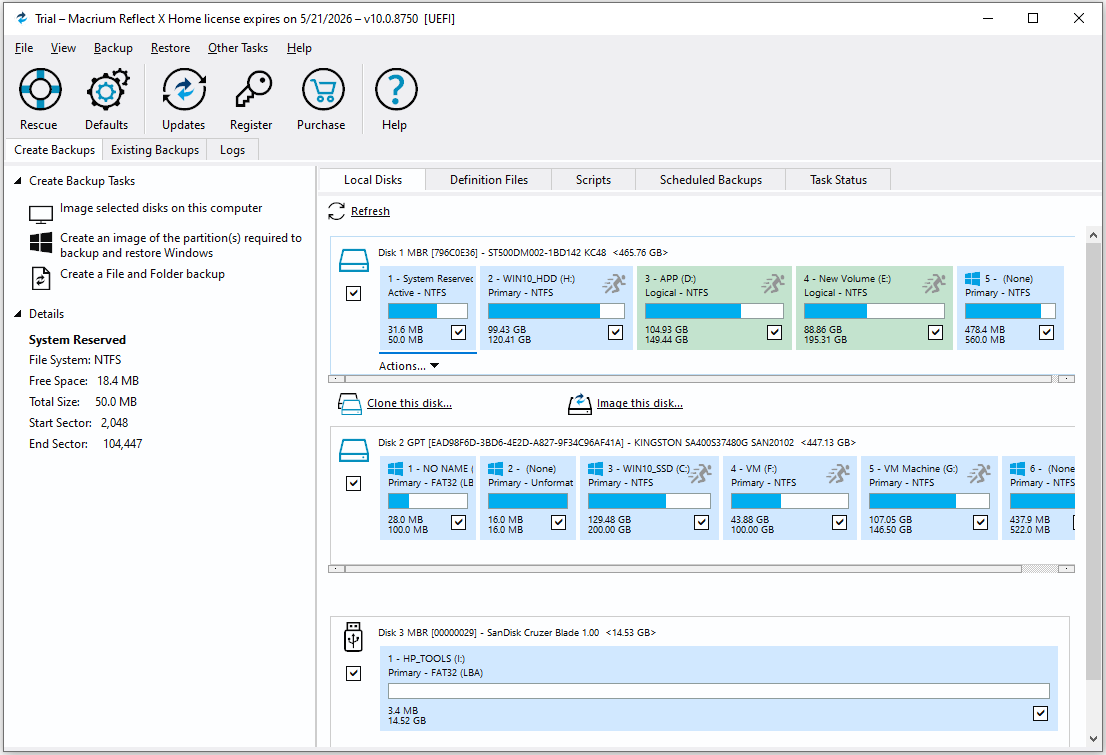
# 5. Macrium Reflect: Advanced, Precision-Focused
Macrium Reflect is an advanced, precision-focused backup tool. The software provides full, incremental, and differential backups with reliable accuracy. It supports disk imaging and fast recovery for precise restoration.
Additionally, this tool is suitable for personal file backup, with scheduling and compression to improve efficiency and ensure data integrity.
Key Features
- Delivers high-precision disk imaging for reliable backup consistency.
- Uses Rapid Delta Restore/Clone to speed up incremental recovery.
- Enables bare-metal recovery to restore systems on different hardware.
- Creates rescue media for offline system recovery.
- Protects backup files with Image Guardian against ransomware.
- Runs backups via viBoot in virtual machines for quick access or testing.
Pros and Cons
Pros:
- Creates accurate disk images for reliable recovery.
- Speeds up recovery using incremental change tracking.
- Restores systems to different hardware when needed.
- Uses rescue media to recover the unbootable system.
- Protects backup files from unwanted changes.
- Tests backups by running them in a virtual environment.
- Focues on reliable and precise backups.
Cons:
- Requires some technical knowledge to use well.
- Works mainly on Windows systems.
- Lacks of built-in extra security tools.
- Needs more setup steps than simple backup tools.
- Fits advanced users better than beginners.
Personal Experience
Macrium Reflect focuses on full disk imaging and system disaster recovery.
The software is known for its strong reliability. The Rapid Delta Restore (RDR) feature speeds up the restore process. The WinPE rescue media has powerful boot repair tools, which help fix systems that fail to start.
The free edition is no longer updated, and the official download is closed. New editions, such as Reflect X, use a subscription model. This increases the long-term cost for personal users. The interface is complex and technical. It is not friendly for beginners.
Is Macrium Reflect Safe? Here’s an Answer & Its Alternative
What is Macrium Reflect? Is Macrium Reflect free? This post shows you the answers including a Macrium Reflect alternative.
Read More
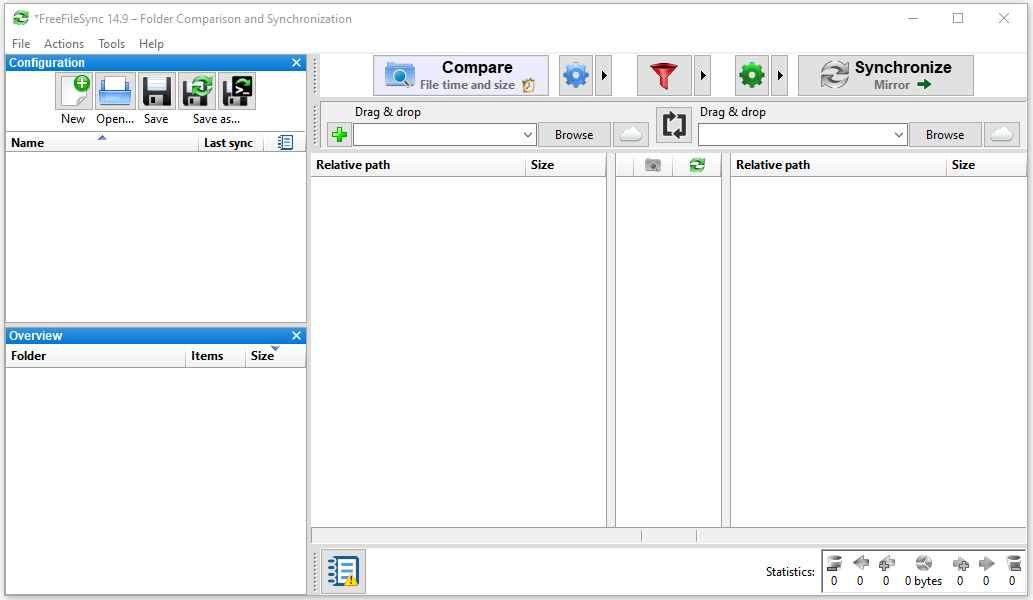
# 6. FreeFileSync: Lightweight, File-Centric
FreeFileSync is a lightweight and file-focused tool. The software is designed for syncing and backing up files quickly. It uses very little system power, so it runs well even on older computers.
The interface is simple and requires no complex setup. This tool works well for organizing and protecting personal files. As a personal file backup tool, it is a good choice for users who want something fast, light, and easy, but it is not designed for full system backup.
Key Features
- Compares folders and syncs only the changed files to save time and space.
- Uses multiple sync modes like mirror, update, and two-way sync.
- Detects moved or renamed files to avoid unnecessary copying.
- Handles multiple folder pairs in one task for batch syncing.
- Works well with local drives, network storage, and some cloud locations.
- Keeps file versions to restore earlier copies when needed.
- Runs as a portable tool with low system usage and no installation needed.
- Focuses on simple file syncing instead of full system backup images.
- Gives users full control over what gets copied or removed during sync.
- Works across Windows, macOS, and Linux with an open-source design.
Pros and Cons
Pros:
- Copies only changed files to save time and space.
- Gives full control over sync actions.
- Runs as a lightweight, low-resource tool.
- Works across Windows, macOS, and Linux.
Cons:
- Requires manual setup for advanced tasks.
- Depends on user choices, which may cause errors.
- Offers limited automation compared to other tools.
- Focuses only on file-level backup needs.
Personal Experience
FreeFileSync is fully open-source and free. It has very low memory usage and runs fast. It supports many target storage devices, such as local drives, external devices, and network paths.
Before syncing, it shows a clear list of file changes, indicating which files will be added, overwritten, or deleted. This preview helps reduce operational risks.
The interface includes many options and settings, which may feel complex for beginners.
Terms like “mirror sync” and “two-way sync” can be complex to understand at first. Initial setup may be confusing.
Choosing the wrong sync mode may result in file loss. Files on the source or target side may be deleted by mistake.
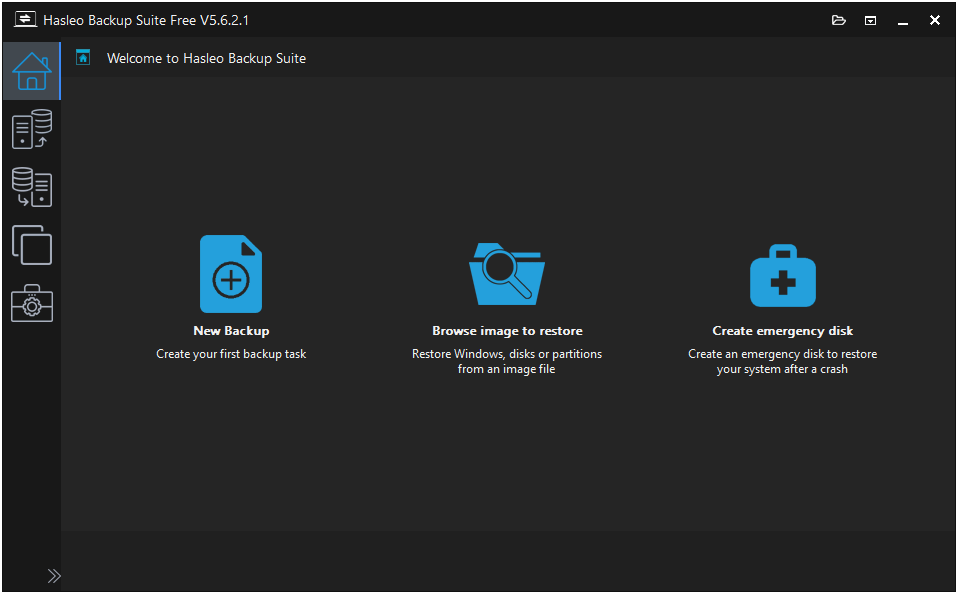
# 7. Hasleo Backup Suite Free: Streamlined, Dependable
Hasleo Backup Suite Free is a streamlined and dependable backup tool. This personal backup software is designed for simple and stable use. It supports system, disk, and file backup in one place. It runs with a clean and easy interface.
Full, incremental, and differential backups are available. These options help users restore data quickly when needed. Disk cloning and system recovery are also supported.
The tool focuses on stable performance and essential protection. It is a good choice for simple and reliable backup tasks.
Key Features
- Backs up system, disk, partition, and files in one tool.
- Uses full, incremental, and differential backup modes.
- Clones disks and migrates Windows to new drives.
- Creates bootable rescue media for system recovery.
- Restores system and files after crashes or failures.
- Compresses, encrypts, and manages backup images.
- Schedules automatic backups with retention rules.
- Mounts image backups for quick file access.
- Filters files during backup for better control.
- Runs on Windows PCs and servers with broad file system support.
Pros and Cons
Pros:
- Combines file backup and full system backup in one tool.
- Includes system recovery and disk cloning features.
- Handles full PC recovery when the system fails.
- Reduces the need for multiple backup tools.
- Keeps the basic setup simple.
Cons:
- Feels heavier than file-only backup tools.
- Requires more steps for simple file backup tasks.
- Offers less convenience for quick file syncing.
- Works only on Windows systems.
Personal Experience
Hasleo Backup Suite Free is easy to download and install from the official website. The software is completely free and ad-free, with a clean and simple interface.
It suits personal file backup tasks well, with quick job creation and straightforward file browsing and restoration. An emergency disk can also be created without difficulty.
The software provides many useful features, including image encryption and compression. It supports incremental and differential backups, with scheduled backup tasks available. OS migration to SSD works smoothly and is very practical.
However, the WinPE boot disk may have driver compatibility issues on some machines. Some advanced features are also limited.
Comparison Table
| Software | Best For | Backup Types | Storage Options | Ease of Use | Automation | Key Strength | Pricing |
| MiniTool ShadowMaker | Flexible backup planning | Full / Incremental / Differential | Local / NAS | Medium | Scheduling | Backup scheme flexibility | Free + Paid |
| EaseUS Todo Backup | Beginners | Full / Incremental / Imaging | Local / Cloud | Easy | Real-time + Scheduled | All-in-one functionality | Free + Paid |
| AOMEI Backupper | Free users | Full / Incremental / Imaging | Local / NAS | Easy | Scheduled | Free feature set | Free |
| Acronis True Image | Security-focused users | Full / Incremental | Local / Cloud | Medium | Real-time protection | Cybersecurity integration | Subscription |
| Macrium Reflect | Advanced users | Disk Imaging | Local | Hard | Scheduled | High reliability imaging | Paid |
| FreeFileSync | File synchronization | Sync only | Local / NAS | Medium | Real-time sync | Sync efficiency | Free |
| Hasleo Backup Suite | Lightweight users | Full / Incremental / Differential | Local / NAS | Easy | Scheduled | Clean UI | Free |
Bottom Line
There is no one-size-fits-all personal file backup software, as each tool serves different needs.
MiniTool ShadowMaker stands out with its beginner-friendly and intuitive design, while EaseUS Todo Backup offers a versatile and well-balanced experience.
AOMEI Backupper Standard delivers a comprehensive, feature-packed solution, whereas Acronis True Image targets premium users with a strong focus on security.
For more advanced use, Macrium Reflect provides precision-focused imaging, while FreeFileSync remains lightweight and file-focused. Hasleo Backup Suite Free offers a streamlined and dependable option for basic backup tasks.
Ultimately, the best backup software is the one that fits your workflow and runs consistently in the background – because the most effective backup is the one you never have to think about.
Personal File Backup Software FAQ
What are the factors to consider before choosing a storage device for backup?
When choosing a storage device for backup, there factors you should consider:
– Capacity: At least double the data size.
– Reliability: SSDs (durable) vs. HDDs (high-volume).
– Speed: Fast interfaces like USB-C.
– Security: Hardware encryption.
– Compatibility: Matching ports and OS.
– Type: Portable vs. Stationary/NAS.
– Cost: Total budget vs. performance.
What are the 4 types of data backup?
The four primary types of data backup are:
Full Backup: Copies all selected files, folders, or hard drives.
Incremental Backup: Backs up only the data that has changed since the last backup of any type.
Differential Backup: Copies all changed data since the last full backup.
Mirror Backup: Creates a mirror image of the source data, essentially a replica.
Does deleting a backup delete everything?
Deleting an old backup will not affect the data currently on your active devices. It simply removes the particular historical copy of your data and frees up storage space.
However, keep in mind that you will lose the ability to restore your device to its exact state at the time of the backup.
What should you avoid doing with backup files?
To ensure data safety, avoid these practices:
1. Storing backups in the same location as the original data.
2. Leaving backup drives plugged in permanently.
3. Skipping regular restoration tests.
4. Relying on a single backup copy.
5. Using cheap or unreliable media.
6. Uploading sensitive data backups to the cloud without encryption.