Android 17 is shaping up to be one of the biggest and most important Android releases in years. It’s packed with new features and changes. Here’s my personal ranking of the seven features I’m most excited about in Google’s new “intelligence system”—yes, that’s what Google is calling Android now.
7
App Automation
Your phone will use your phone now
App automation is probably the headliner feature of Android 17 from Google’s perspective. The idea that Gemini can handle multistep tasks—ordering food, booking rides, filling carts, and so on—across apps and the web (through Chrome) does sound pretty cool and sci-fi. The only reason it ranks at the bottom of my list is that I personally don’t see myself using it.
Don’t get me wrong—I do think there’s a version of this that could be genuinely useful. Some apps and websites have terrible user interfaces (UI), and having your phone intelligently navigate them for you would definitely be a relief. That said, I’m a heavy AI user who already uses agentic AI and browser automations, and I’ve noticed AI models often struggle to navigate websites with poor UI. So I’m not especially confident this will be much different here.
On the other hand, when apps have good UI, I’ve never really had the desire to delegate to them. When I’m booking a flight, I actually want to be part of the process. I want to compare timings, look at deals, evaluate routes, and figure out what makes the most sense for my trip. Gemini can’t make those judgment calls for me—and honestly, I wouldn’t want it to, even if it could.
This feature feels like it was designed for high-level executives who were already asking human assistants to handle bookings for them—not for people who actually enjoy being in control of their own decisions. That’s the main reason it sits at the bottom of my list. I’m just not the type of user this feature is targeting.

9 Tasks You Can Automate on Your Android Phone
So you don’t have to remember to do them.
6
Better Instagram integration
Apple is losing its lead in yet another area

Instagram has historically been optimized for the iPhone’s image-processing pipeline. That’s one of the main reasons Instagram photos shot on an iPhone tend to look better than those uploaded from Android devices. In fact, I own a Google Pixel 10, and one of my friends owns an iPhone 13—which is four years older than my phone—and their Instagram photos still look better. But that’s finally about to change with Android 17.

- Brand
-
Google
- SoC
-
Google Tensor G5
- Display
-
6.3-inch Actua OLED, 20:9
- RAM
-
12 GB RAM
- Storage
-
128 GB / 256 GB
- Battery
-
4970mAh
Looking to upgrade to a Pixel but not sure if you need all the bells and whistles of the more expensive models? You won’t be disappointed with the standard Pixel 10 model. Coming in striking colors, Gemini features, and seven years of updates, you can’t go wrong with this purchase.
Google and Meta have teamed up to bring advanced features like Ultra HDR capture and playback, built-in video stabilization, and Night Mode support directly to Instagram on Android. More importantly, they’ve optimized the entire upload pipeline, so what you shoot is much closer to what actually gets posted.
Beyond the image-quality improvements, there’s also a broader set of creator tools that look genuinely useful. Screen Reactions lets you overlay your reaction on top of a video or image without needing a green screen setup. Smart Enhance offers one-tap restoration for old photos and videos. Sound Separation can isolate and remove audio layers like wind noise or background chatter directly inside the app.
All of these are great additions and long overdue. The only reason this feature ranks sixth on my list is that I’m not a heavy Instagram user. I mostly use it to share things with friends and family. Still, who knows—maybe these features will kick off my journey toward becoming an Instagram influencer.

8 Instagram Privacy Settings You Should Change Right Now
Learn how to draw the curtains on your Instagram presence with these simple settings.
5
App Bubbles
Smartphone multitasking finally looks practical
Last year, I went on a trip and had to finish an article while on the go. Unfortunately, I didn’t bring my laptop and only had my Google Pixel 10 with me. While my phone had all the apps I needed, constantly juggling between research, writing, and communication apps was an absolute headache. So I was really excited the moment I saw the new App Bubbles feature.
If you remember the old days of Android chat bubbles—where messaging apps could shrink into floating bubbles—this will feel instantly familiar. The difference is that Android 17 now lets you do this with almost any app, not just messaging apps. You can open apps in floating windows, minimize them into bubbles, and keep up to five active at the same time. Tapping a bubble instantly brings that app back into focus.
The mental model that clicks for me is browser tabs. You always know what’s open, and switching between apps becomes as simple as tapping another tab—or a bubble in this case. For example, I could keep Chrome, Notion, and Slack running as bubbles and jump between them almost like I’m working on a laptop.
That said, this is another feature that feels long overdue. Android manufacturers like Samsung and Xiaomi have offered their own versions of floating multitasking for years. The big win here is that it’s finally becoming part of stock Android itself, which means every Android device—including my Pixel—should get access to it.
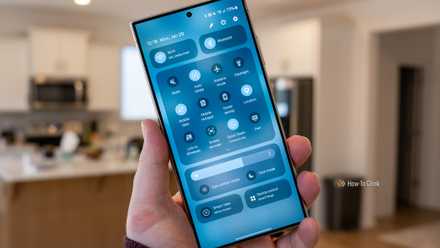
7 Clever Ways I Multitask on My Samsung Galaxy Phone
It’s second nature to me at this point.
4
Intelligent Autofill
Forms begone
Intelligent Autofill uses the personal information Gemini already knows about you to automatically—and accurately—fill out forms. It can pull data from your photos, Google Wallet, Gmail, and other Google apps to build a better understanding of who you are, then use that information to complete forms on your behalf.
For example, you could keep a photo of your passport in Google Photos. Gemini can analyze it, extract the relevant details, and build a profile around that information. Then, whenever you tap into a field on a form, it can automatically insert the appropriate data for you.
That said, the feature sounds awfully familiar to Magic Cue, which was the headline feature of the Google Pixel 10 when it was announced. The idea behind Magic Cue was that it could intelligently surface relevant information from your emails, messages, and photos while you were doing other things. It sounded amazing in theory, but in practice, it barely worked.
Granted, Intelligent Autofill is much narrower in scope than Magic Cue—it’s specifically designed for forms. Because of that, I’m hopeful it’ll work much better. And if it does, this could end up being one of those features that genuinely feels like magic.
3
Pause Point
Your phone stops you from using it all the time


Android already has screen-time tools. You can set a timer on an app, and once it runs out, you get a pop-up telling you your time is up. The problem is that you can dismiss that pop-up in half a second and go right back to scrolling. There’s basically no friction involved.
Pause Point tries to solve that problem, and I honestly love the idea. Whenever you open an app you’ve marked as distracting, Android 17 shows a 10-second pause screen before the app launches. During those 10 seconds, you can configure it to show specific photos or even suggestions to open a different app instead.
I can see this being enough friction to break the habit loop. What’s even better is that disabling Pause Point is intentionally inconvenient—you apparently have to restart your phone, which makes it harder to bypass impulsively.
I personally have an Instagram and Reddit problem. I can’t delete either app because I genuinely need them for work, but both can easily turn into distractions that hurt my productivity. That’s why I’m genuinely looking forward to using Pause Point.
For example, I could set motivational quotes, work reminders, or shortcuts to apps like Notion and Asana to appear whenever I tap Instagram or Reddit out of habit. And if I really am opening them for work, those reminders can help reinforce my intention instead of letting me mindlessly drift into scrolling.
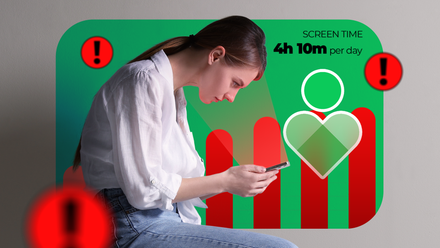
How Android’s “Digital Wellbeing” Can Actually Make Your Screen Time Worse
It’s yet another reason to pick up your phone.
2
Rambler
Voice typing is finally solved

Bertel King / How-To Geek
I’ve been pretty vocal about how much I love Gboard on Pixel phones and the excellent voice-typing experience it offers. In fact, it’s one of the main reasons I refuse to switch to another smartphone brand. Now, Rambler promises to take that experience even further—potentially perfecting it.
With Rambler, all you have to do is just speak naturally without worrying about filler words, awkward phrasing, or repeating yourself. Once you’re done, the AI processes everything you said, removes the redundancies, and turns it into clean, structured text.
Technically, you can already do something similar on Android 16. You’d first do a voice dump, then use Gboard’s built-in writing tools to clean it up—removing filler words and tightening the structure afterward. Rambler basically collapses that workflow into a single step. You speak, it handles the cleanup automatically, and what you get back is much closer to what you actually meant to say.
Your Android phone is about to feel a lot more personal
Finally, the Android 17 feature that has me most excited: Create My Widget. Android will now let you describe the kind of widget you want using natural language, and the OS will generate it for you automatically. That’s genuinely awesome.
For years, the Android widget experience has felt limited by what app developers chose to build. A developer creates a widget with a specific layout and a fixed set of information, and that’s basically all you get.
If the widget you actually wanted didn’t exist, you historically had two choices: settle for a third-party widget pack that got close enough, or dive into something like KWGT and build it yourself. KWGT is incredibly powerful, but it also takes a lot of time and effort to learn properly. Most people—me included—simply don’t want to spend hours tinkering with home-screen customization.
Create My Widget finally solves this. The idea that I can simply describe the information I want and have Android build the widget for me feels like a massive leap forward for personalization. It makes advanced customization accessible to the masses.
More importantly, Google is describing this as “the first step toward generative UI,” which suggests that what’s arriving with Android 17 is only the beginning. The long-term vision here—a UI that dynamically adapts itself around your needs at the component level—is genuinely fascinating.
Which Android 17 features are you most excited for?
Android 17 doesn’t feel like just another feature drop—it feels like a statement of intent. Some of these features will probably fade into the background and quietly become part of your daily routine. Others could fundamentally change how you interact with your phone altogether. Either way, it’s a genuinely exciting time to be an Android user.