Local backup software securely copies files, folders, or entire systems to devices like external drives, NAS, or USB sticks. This post explains local backup and compares tools such as MiniTool ShadowMaker, EaseUS Todo Backup, and AOMEI Backupper Standard.
About Local Backup
A local backup means storing the copies of data to physical storage devices, such as an external hard drive, NAS (network-attached storage), and flash drive. Normally, the location of these devices is close to the source, such as in an office or at home.
Local storage enables high-speed data recovery without internet dependency. It provides immediate security and grants you full control over your data.
Local vs. Cloud Backup: Which Is Right for You?
Local backup stores data on physical devices, providing fast access without needing the internet. These drives are secure from cyber threats, but can be lost or damaged.
Cloud backup saves files on remote servers, protecting data from physical accidents. Users can access files from anywhere, usually by paying a small fee.
If you want a no-subscription restoration, local backup is better. If you want to have an automated off-site protection against physical disasters, cloud backup is a good choice.
Tips:
How to Choose the Local Backup Software
There are several factors to consider when you are choosing local backup software, including automated scheduling, imaging capabilities (system vs. file-only), and ease of use.
- Automated and Flexible Scheduling: Allows scheduling backups daily, hourly, or upon specific events (like system login/logoff) to avoid relying on memory.
- Full System Imaging: Supports creating system image or bare-metal backups, not just files.
- Optional Backup Strategies: Offers different backup plans to balance speed and storage, including full (comprehensive), incremental, and differential backups.
- Strong Encryption and Security: Ensures the security of backups via encryption (password protection) and data validation.
- User-Friendly Interface: Features an intuitive and straightforward user interface to manage jobs and view reports.
- Smart Alerting: Alerts users automatically if a backup job fails.
- Good Performance Efficiency: Operates in the background without significantly slowing down your computer, allowing for continuous productivity.
- Immutable Backups/Ransomware Protection: Protects backup files from being modified or deleted by ransomware.
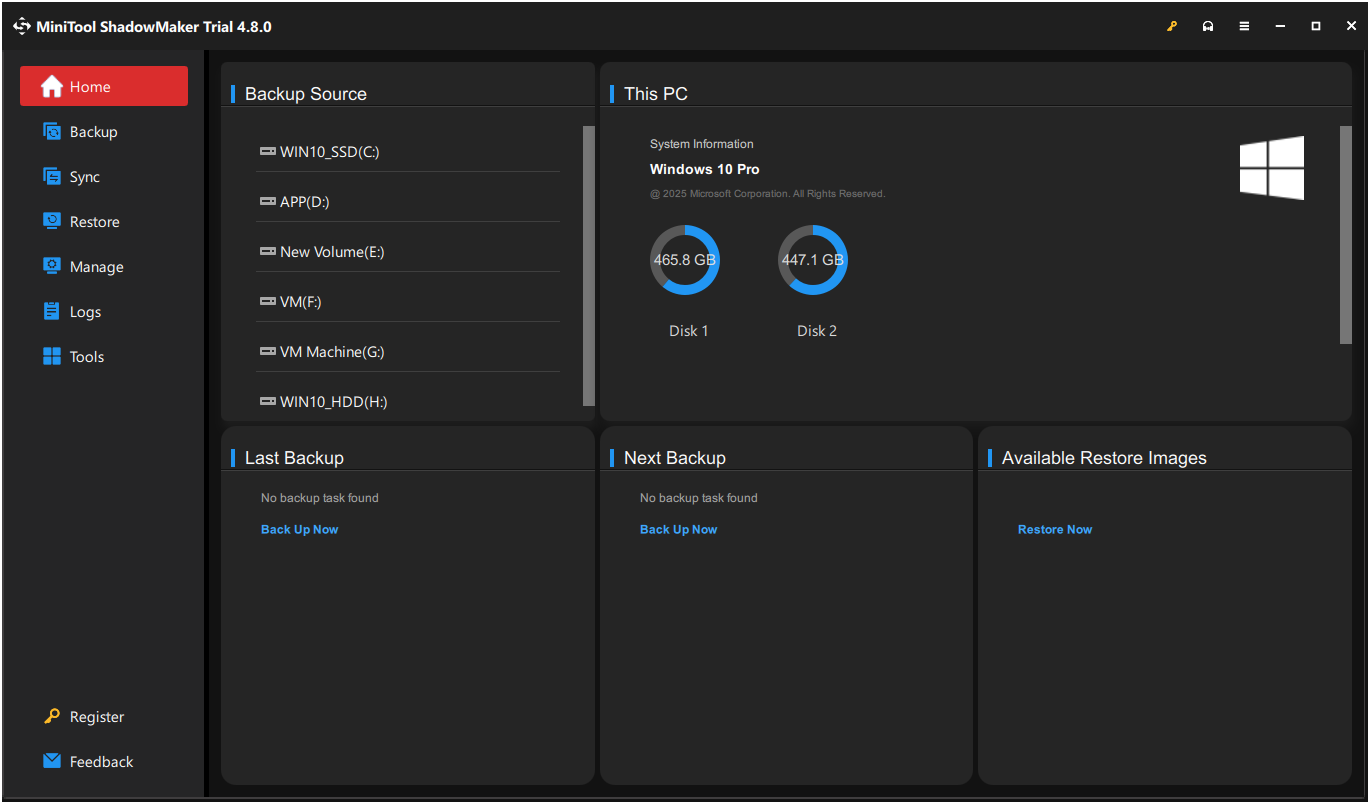
MiniTool ShadowMaker is a reliable and user-friendly backup solution designed for Windows. This local backup software offers file sync, disk imaging, and scheduled backups to protect against data loss.
Key Features
- Flexible Backup Sources: Supports system, disk, partition, or file and folder backups.
- Disk Imaging and Cloning: Enables full disk imaging and effortless system migration.
- Automated Scheduling: Runs backups on daily, weekly, or monthly schedules.
- Backup Strategy Choices: Provides full, incremental, and differential backups to save time and space.
- Bootable Media Creation: Builds a bootable USB or CD for recovery when systems fail to boot.
- Backup Version Management: Automatically deletes old backups to save storage space.
- Data Protection: Offers password protection and encryption to keep backup data secure.
Pros and Cons
| Pros | Cons |
| 1. Easy-to-use interface. 2. Fast imaging & cloning. 3. Flexible scheduling and versatile backup options. 4. High-speed performance. 5. Intelligent destination selection. 6. Strong security. |
1. Limited cloud support. 2. No refresh button. 3. Limited advanced features in Free Edition. |
Target Audience
MiniTool ShadowMaker primarily targets home users and small and medium-sized businesses.
- MiniTool ShadowMaker Free/Pro/Pro Ultimate Edition: Used for personal users, compatible with Windows 7/8/ 8.1/10/11. Pro editions and above support advanced features, such as automation, universal restore, WinPE bootable media, etc. Pro Ultimate supports multiple PCs with a lifetime license.
- MiniTool ShadowMaker Business Standard/Deluxe Edition: Designed for business users, supporting Windows Server (2008-2025), non-server OS, and workstations. Standard covers one device; Deluxe supports up to 10 PCs and Servers.
Personal Experience
The interface of MiniTool ShadowMaker is simple and intuitive, making it easy to navigate directly to the backup section.
Users can flexibly select backup sources and target drives and set up automated schedules and various backup schemes. These features ensure efficient local data management and system protection.
However, the software lacks built-in cloud backup support and a manual refresh button. If disk changes occur, the application must be relaunched to recognize the new hardware.
Additionally, advanced tools like incremental backups and Universal Restore are restricted to the Pro edition and are unavailable in the Free edition.
Clone vs Image: What Are the Differences? Which One to Choose?
Both clone and image are important. Some users want to know the differences between them. This post introduces details about clone vs image.
Read More
EaseUS Todo Backup – Simple Home Protection
EaseUS Todo Backup is a simple, user-friendly, automatic backup tool designed to protect your home computer data from system crashes and ransomware.
It offers scheduled backups for files, folders, and entire systems to external drives, NAS, or the cloud.
Key Features
- Flexible Backup Types: Supports different backup types.
- One-Click Backup: Quickly creates images of systems, disks, partitions, or specific files.
- Cloud Integration: Stores backups to various cloud storage services, including Google Drive, OneDrive, Dropbox, and EaseUS Cloud.
- Disk/System Cloning: Simplifies OS migration and hard drive upgrades to SSDs.
- Security Zone: Creates a protected, encrypted partition to defend backup data from ransomware.
- WinPE Bootable Media: Allows for WinPE bootable recovery when Windows fails to start.
- Smart Backup: Automatically backs up files when there are changes in the target folder.
Pros and Cons
| Pros | Cons |
| 1. Integrated cloud support. 2. The security zone feature. 3. Ease of use. 4. Flexible scheduling. 5. Top performance. |
1. Restrictive free edition. 2. Significant system resource consumption. 3. Frequent pricing promotions. |
Target Audience
- EaseUS Todo Backup Free/Home: Used for personal users, compatible with Windows 7/8/8.1/10/11. Home Edition and above support Outlook email backup and disk cloning.
- EaseUS Todo Backup Workstation: Designed for business continuity, supports Windows 11/10/8/7. It features dissimilar hardware restoration, P2V (physical to virtual) migration, and command-line support, which are not supported in Home Edition.
- EaseUS Todo Backup Server/Advanced Server/Technician: Designed for business users, supporting Windows Server (2003-2025), Exchange, and SQL databases. The Server editions focus on single-machine protection, and Technician supports multiple PCs/Servers.
Personal Experience
The experience with EaseUS Todo Backup is generally positive but has some drawbacks. The download process requires email registration, which adds an extra step. During installation and use, discount pop-ups appear at times, which can be distracting.
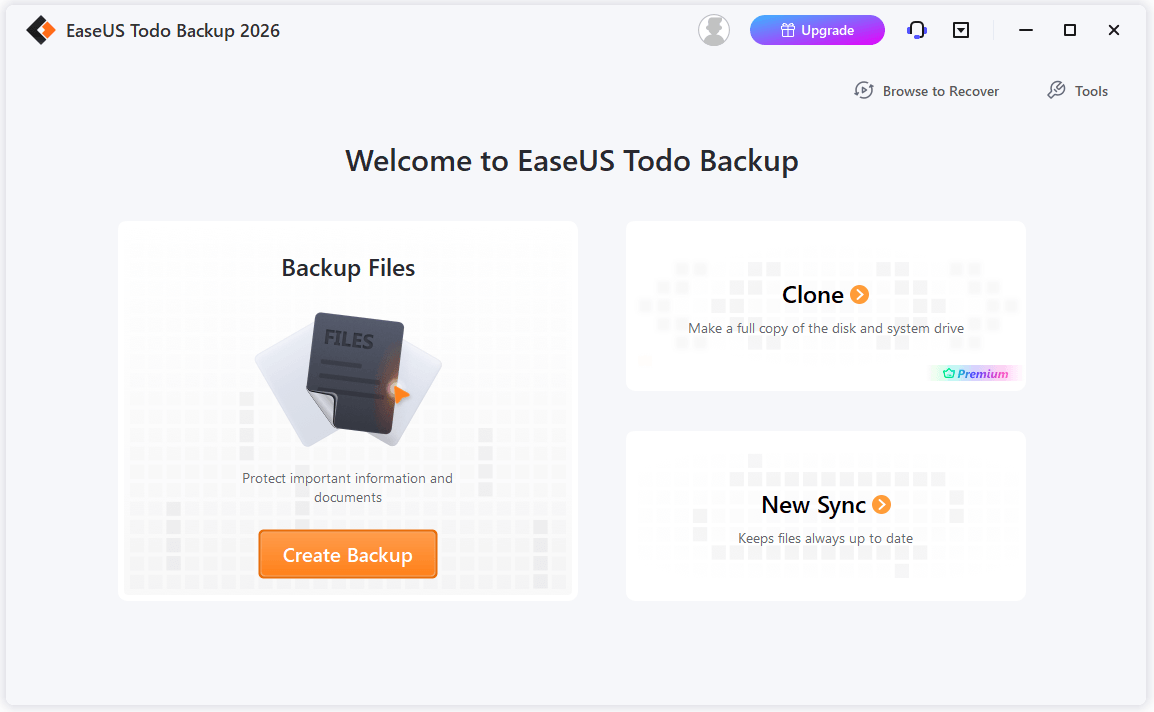
However, the main interface is simple and intuitive. Backup, clone, and sync options are clearly displayed. It is easy to choose files, disks, the OS, or specific application data for backup.
The backup destination is flexible. Options include a local drive, EaseUS cloud, network location, or a security zone. Scheduled backups and different backup schemes are also available, which improves usability.
However, several advanced features are limited to the paid editions. Advanced features such as disk cloning, system migration, security zone, and backup protection require an upgrade.
Top 10 Best Data Migration Software: HDD, SSD, and OS Clone
This article introduces the top 10 data migration products for you to choose from.
Read More
AOMEI Backupper Standard – Best Free All-in-One
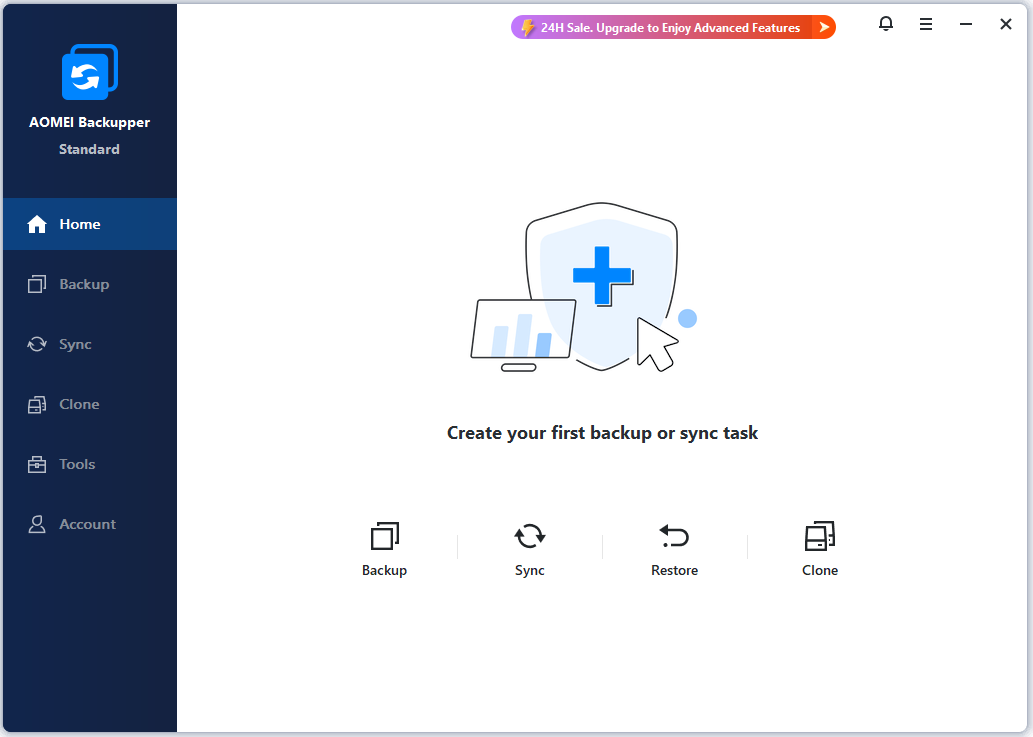
AOMEI Backupper Standard is a well-regarded, all-in-one free backup, synchronization, and disk cloning tool for Windows PCs.
It provides comprehensive data protection, including backups for systems, disks, and files. It features automated scheduling, incremental and differential backups, and SSD cloning.
Key Features
- Back Up Everything: Includes system backup, disk backup, partition backup, and file/folder backup.
- Synchronize Files: Keeps data consistent across external drives, NAS, or network shares.
- Manage Images: Compresses, splits, and sends email notifications for all backup tasks.
- Clone Disks: Transfers data between disks to simplify hardware upgrades.
- Create Bootable Media: Builds WinPE or Linux bootable drives to restore crashed systems.
- Automate Tasks: Executes backups on daily, weekly, or monthly schedules automatically.
- Save Space: Uses incremental backups to capture only changed data since the last backup.
Pros and Cons
| Pros | Cons |
| 1. Feature-rich free edition. 2. Intuitive interface. 3. Vast compatibility in storage hardware. 4. Flexible recovery. |
1. Slow backup speed. 2. Frequent advertisements popup. 3. Limited advanced features in the standard edition, including system clone and differential backups. |
Target Audience
- AOMEI Backupper Standard/Professional/Workstation: Used for personal users, available on Windows 7/8/8.1/10/11. Professional and above support for system cloning, universal restore, and file encryption; Workstation includes command-line backup and supports multiple high-end PCs.
- AOMEI Backupper Server/Technician/Technician Plus: Designed for business users, supports Windows Server (2003-2025), non-server OS, and workstations. The Server Edition license is valid for one server, while the Technician Editions support unlimited devices and offer billable services across locations.
Personal Experience
The experience with AOMEI Backupper Standard is smooth and user-friendly. There are occasional promotional pop-ups during the download and installation process, which may affect the user experience.
The main interface is simple and intuitive. Backup, sync, restore, and clone options are easy to find. It supports backups of files, disks, partitions, the OS, Outlook data, and other email data.
The backup destination is flexible. Options include local drives, NAS, and network shares. The software supports scheduled backups and offers multiple backup schemes for everyday use.
However, some advanced features are limited to the paid edition. Email backup, real-time/mirror/two-way sync, as well as system clone, require an upgrade.
Backup vs Sync: What Are the Differences Between Them?
What’s the difference between sync and backup? What are their advantages and disadvantages? This post provides information about backup vs sync.
Read More
Acronis True Image – AI Ransomware Defense
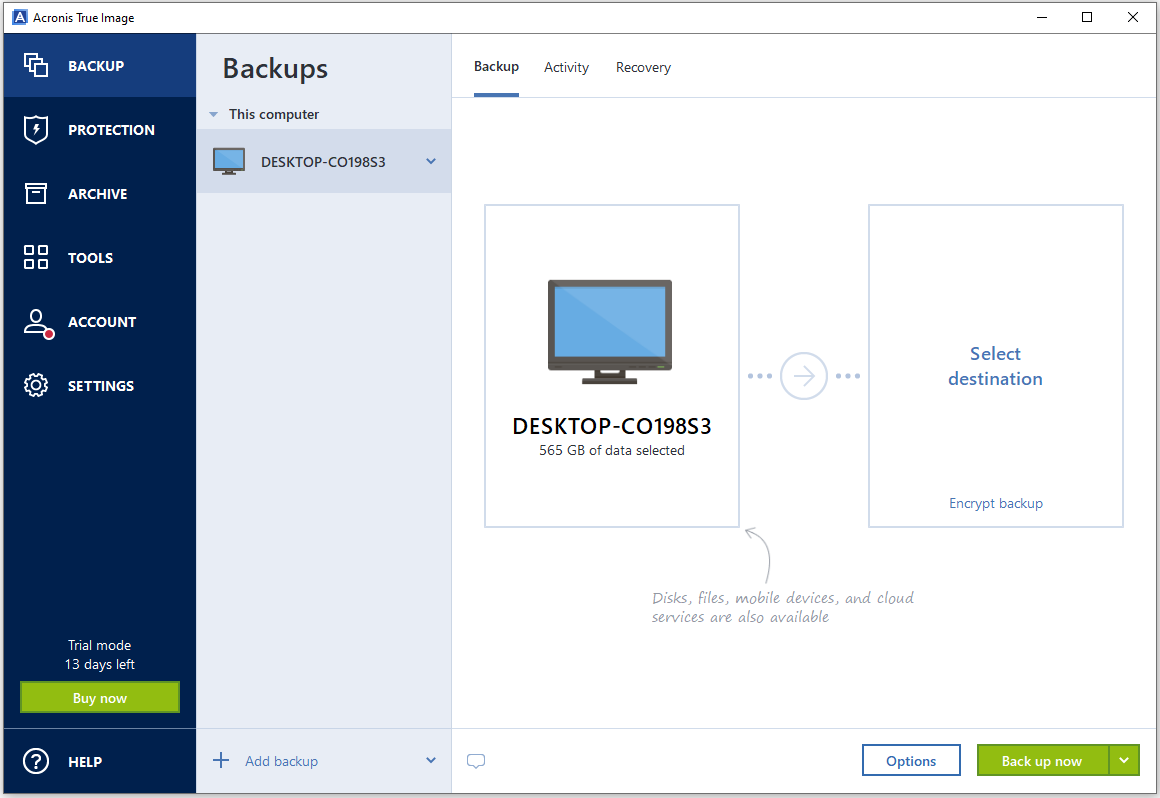
Acronis True Image was formerly known as Acronis Cyber Protect Home Office. It is a comprehensive cyber protection solution designed for home users, remote professionals, and small offices.
Key Features
- Integrate Cyber Security: Combines backup with AI-based anti-ransomware and antivirus protection in one tool.
- Sync and Share Files: Syncs files between computers or to the cloud for easy access across devices.
- Customize Backup Schemes: Supports full, incremental, and differential backups, allowing for optimized storage usage.
- Offer Cloud Storage: Provides off-site storage options for Advanced and Premium subscribers to ensure disaster recovery.
- Capture Complete System Images: Creates exact copies of your entire OS, apps, and settings for total recovery.
- Clone Active Disks: Migrates data to new drives in real-time without stopping your work.
- Restore to Any Hardware: Uses bootable media technology to recover your system onto entirely different hardware.
- Verify with Blockchain: Offers electronic signatures and certifies that backups haven’t been tampered with using ASign/Notary.
- Manage Multi-Device Mobility: Backs up unlimited mobile devices and controls data remotely via a web dashboard.
Pros and Cons
| Pros | Cons |
| 1. Comprehensive backup options. 2. Robust security. 3. Fast disk cloning. 4. Versatile storage. 5. Easy setup. |
1. High on cost. 2. Resource-intensive. |
Target Audience
- Acronis True Image Essentials/Advanced/Premium: Used for personal users, compatible with multiple systems. Advanced and Premium editions offer cloud backup and anti-ransomware, with Premium adding blockchain certification and up to 5TB of storage.
- Acronis Cyber Protect Standard/Backup Advanced/Advanced: Designed for business users, supporting Windows Server, Linux, virtualization hosts, and cloud workloads. The Standard edition is designed for single-server setups, while the Advanced and Backup Advanced editions support centralized management, off-host processing, and scalability for large enterprises.
Personal Experience
The experience with Acronis True Image is stable and easy to follow. Registration is required before use, and only a 30-day trial is provided. The main interface is simple and intuitive. Backup tasks are easy to set up.
The backup destination is flexible, including local drives, NAS, and Acronis Cloud. Daily scheduled backup is enabled by default, and different backup schemes can be selected.
However, some features are limited. The “Files to notarize” feature requires an upgrade to the Premium edition. After the trial period ends, the software becomes restricted. Backup functions stop working, but restore functions are still available.
Post recommended: https://www.minitool.com/backup-tips/selective-backup.html
FreeFileSync – Open-Source Folder Sync
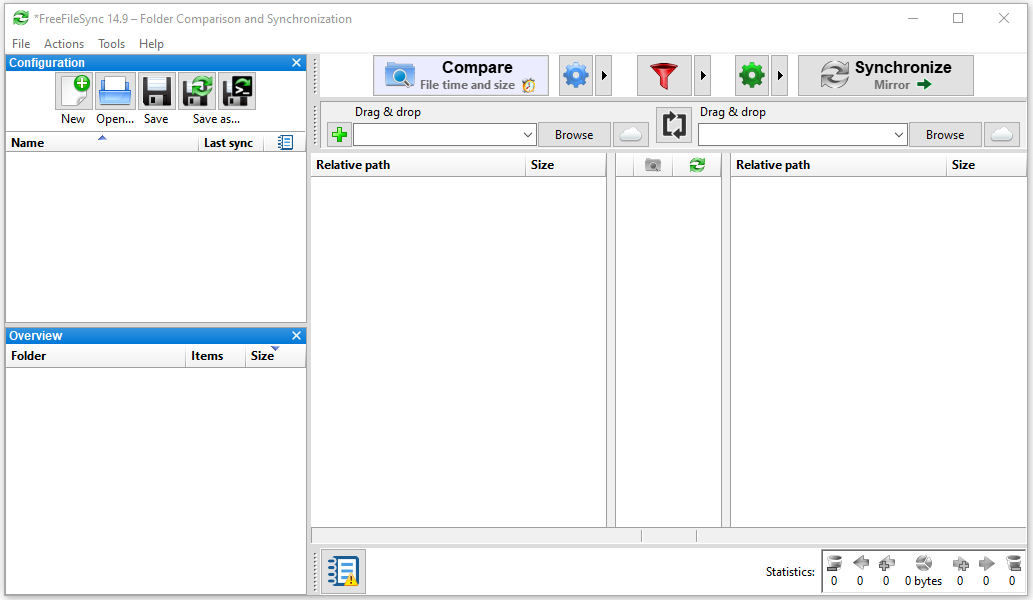
FreeFileSync is an open-source tool for data backup by synchronizing files between a source and a destination.
It offers three main modes to sync and back up files. The Mirror mode creates an exact copy and removes extra files on the target. The Update mode copies only new and changed files. The Two-way mode keeps two locations in sync by updating only the differences.
Key Features
- Process Automation: Uses RealTimeSync for instant updates or saves batch jobs for scheduled execution.
- Synchronization Modes: Supports Mirror, Update, and Two-way methods to handle different data workflows.
- Data Protection: Implements fail-safe file copying and versioning to prevent corruption and recover deleted files.
- Cross-Platform Availability: Operates seamlessly on Windows, macOS, and Linux with a uniform interface.
- Change Detection: Automatically identifies files that have been moved or renamed to avoid unnecessary data transfer.
- Cloud & Device Connectivity: Connects to Google Drive, SFTP/FTP, and MTP devices (mobile phones) directly.
- Performance Optimization: Performs multi-threaded parallel transfers and copies locked files using Volume Shadow Copy.
- Comparison Engine: Compares folders by date/size or file content (bit-wise) to pinpoint exact differences.
Pros and Cons
| Pros | Cons |
| 1. An open-source license ensures the software remains free. 2. High performance enables fast file comparison and transfer. 3. Multiple sync modes (Mirror, Update, Two-way) offer flexible workflows. 4. Fail-safe file copying uses temporary files to keep data secure. 5. Broad compatibility allows for use across Windows, macOS, and Linux. |
1. No “true” system backup feature. 2. Locked specific features behind a donation. |
Target Audience
- FreeFileSync Standard Edition: Used for individual home users, compatible with Windows 11, 10, 8.1, 8, and 7. It provides core file synchronization and mirroring for personal data. It is restricted to non-commercial use and requires manual updates.
- FreeFileSync Donation Edition: Designed for power users and frequent backers on the same Windows system who require advanced automation. It adds auto-updates, email sync logs, and a portable USB version.
- FreeFileSync Business Edition: Targeted at corporate environments, government agencies, and organizations using Windows 11/10 and Windows Server (2012 – 2022). It provides commercial licensing and supports silent, mass deployment across multiple workstations.
Personal Experience
FreeFileSync is an open-source local backup tool with a clean download and installation process. No purchase ads appear during setup, and the software can be used for free. It supports efficient differential backup, which saves time and reduces data transfer.
Several backup modes are available, including Mirror, Update, and Two-way. You can choose the corresponding mode according to your needs.
However, the interface is not very clear and includes many technical options. Beginners may feel confused when using it. Improper use of the Mirror mode may lead to accidental data loss.
In addition, the free edition is limited for commercial use or silent automated backup tasks. Some advanced automation and portable features require a donation to unlock.
Spotlight on Grandfather Father Son Backup Scheme & Implement It
What is (GFS) grandfather father son backup strategy? How to implement it on a PC? Find what you need from this ultimate guide.
Read More
Macrium Reflect — Powerful Disk Imaging
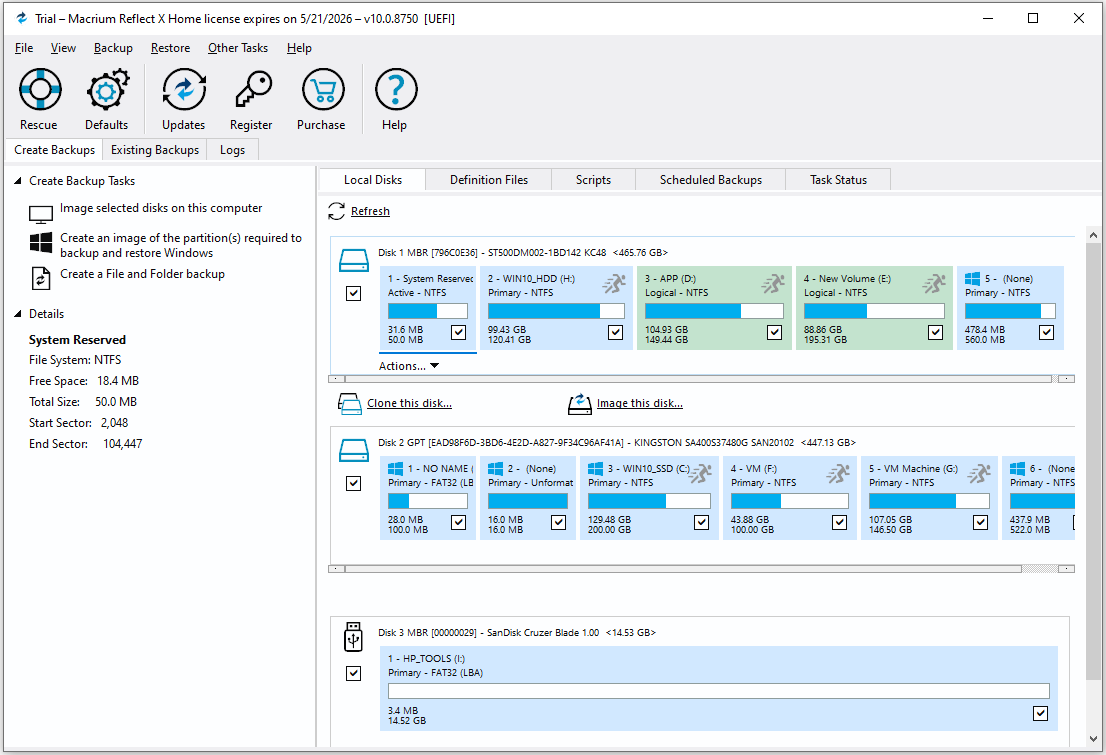
Macrium Reflect is a reliable disk imaging and cloning solution for Windows that operates at high speed. It creates precise, compressed copies of drives for disaster recovery, hard drive upgrades, and data protection.
The software offers full, incremental, and differential backup options, allowing users to restore their systems to a previous state when needed.
Key Features
- Full System Imaging: Creates complete system images for backup and recovery.
- Fast Backup & Cloning: Performs high-speed disk imaging and cloning.
- Incremental & Differential Backup: Saves time and storage with change-based backups.
- Rapid Recovery: Restores systems quickly after failure.
- Bootable Rescue Media: Creates recovery media for system recovery.
- Advanced Scheduling: Automates backup tasks with flexible schedules.
- Ransomware Protection: Protects backup files from unauthorized changes.
Pros and Cons
| Pros | Cons |
| 1. Proven reliability. 2. Fast backup/cloning speeds. 3. Comprehensive features. 4. Robust disaster recovery capabilities. 5. Automated storage management. |
1. No free edition. 2. Forced background services. 3. Higher price than other alternatives. 4. Not beginner-friendly. |
Target Audience
- Reflect X Home: Designed for individual personal users on Windows 10/11. It is available for non-commercial PC backup.
- Reflect X Workstation/Server/Server Plus: Targeted at business environments. Workstation is for professional PCs; Server adds support for physical/virtual Windows Servers; Server Plus provides granular recovery for SQL and Exchange databases.
- Reflect X Technician/Deployment: Built for IT professionals and enterprises. Technician allows for imaging of multiple machines via a portable USB drive. Deployment/Site Manager focuses on centralized management and scaling backups across hundreds of network endpoints.
Personal Experience
Macrium Reflect is widely known as a stable local backup solution. It supports full system image backup and recovery. Backup and cloning speeds are fast, and the feature set is comprehensive. It is suitable for reliable system protection and disaster recovery.
However, the free edition is no longer available. The trial edition requires account registration, login, and an activation code before installation. The interface and advanced settings are not very intuitive for beginners.
The software also runs background services after installation and uses system resources. The home edition is relatively expensive compared to some alternatives.
Manual Backup vs Automated Backup – Differences & Choose Better
Manual backup vs automated backup: which one to choose? From this guide, you know the differences and can easily make a decision.
Read More
Paragon Backup & Recovery – Advanced Disk Management
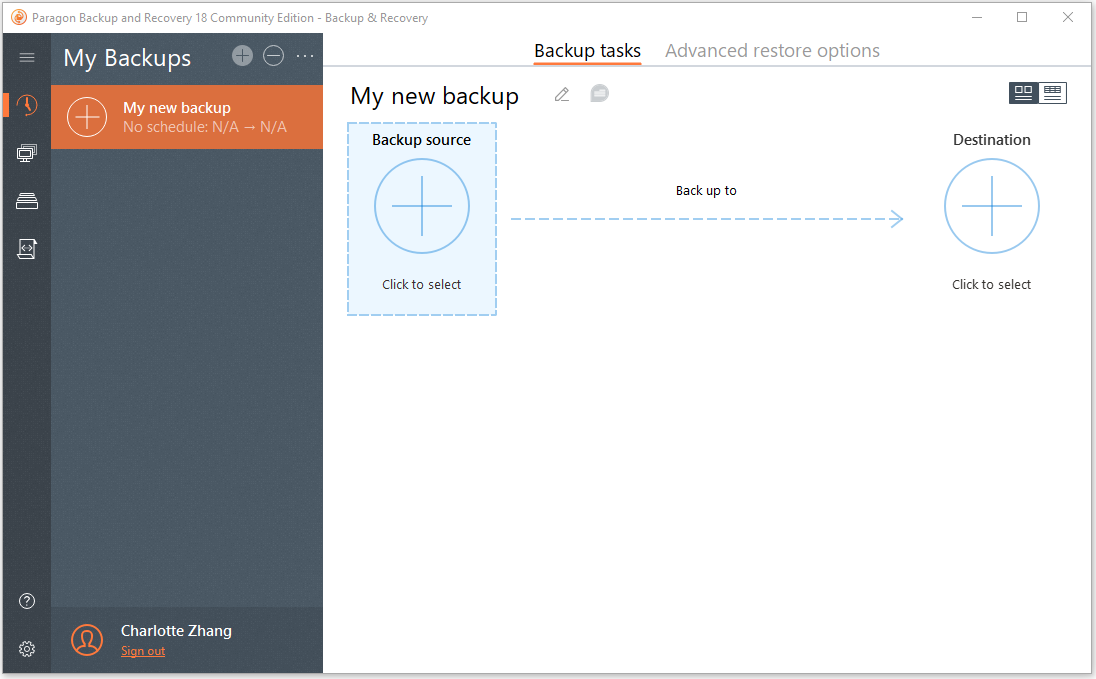
Paragon Backup & Recovery (especially Community Edition) provides advanced disk management. It allows for imaging of entire disks or specific partitions at the sector level, as well as file-level backups.
It enables system recovery on new hardware, supports complex partitioning (such as resizing, merging, and undeleting), and includes comprehensive recovery media tools.
Key Features
- Flexible Backup Policies: Enables scheduled backups for partitions, system, or files.
- Differential & Incremental Backup: Saves space by backing up only changes.
- Integrated Recovery Builder: Easily creates bootable USB drive to restore your system even if Windows fails to start.
- Virtual Disk Mounting: Accesses files directly without a full restore.
- Automated Scheduling: Runs backups on your timeline with real-time success/failure alerts.
- Multiple Storage Options: Stores backups on local disks, external drives, or network locations.
Pros and Cons
| Pros | Cons |
| 1. Secure and reliable. 2. User-friendly interface. 3. Comprehensive functionality. 4. Robust free edition. 5. Virtualization support. |
1. Slow backup speed. 2. Delayed system feedback. |
Target Audience
- Paragon Backup & Recovery Community Edition: Free for personal, non-commercial use on Windows 7/8/10/11. It includes essential tools for home users to perform full, incremental, or differential backups of disks and partitions. Additionally, it is used along with WinPE-based recovery media creation.
- Paragon Hard Disk Manager (HDM) Home/Business: The comprehensive suite for advanced users and professionals. The Home edition and Business edition add some advanced features compared to the Home edition.
- Paragon Hard Disk Manager Server/Technician: Tailored for enterprise IT environments and service providers. The Server edition supports Windows Server OS (2008 R2-2022) with granular backup scheduling. The Technician edition allows IT pros to service unlimited client PCs and Servers using a single license.
Personal Experience
Paragon Backup & Recovery has a clean and simple interface. It is easy to set up, even for beginners without IT knowledge.
There are no heavy discount pop-ups. The free Community Edition offers solid, comprehensive backup features. The backup process is stable and reliably restores data after a system failure.
However, the software requires account registration or login before use. Backup speed is relatively slow, and feedback during tasks is limited.
Some advanced features are hard to find in the free edition. The professional edition is more powerful, but the price is relatively high.
Final Verdict
Choosing the right local backup software depends on your needs and skill level. Tools like Paragon Backup & Recovery and Macrium Reflect offer strong disk management and imaging features. FreeFileSync is a good choice for simple folder sync and open-source users.
Acronis True Image stands out with AI ransomware protection. AOMEI Backupper Standard provides a free all-in-one solution.
EaseUS Todo Backup is ideal for beginners who want simple protection. MiniTool ShadowMaker delivers stable and reliable image backups.
Overall, these tools cover different needs, helping users keep their data safe with local backup solutions.
Local Backup Software FAQ
What should you always backup?
You should always back up irreplaceable data, such as family photos, videos, personal documents, financial records, and critical work projects.
Which backup strategy is best?
What are the two most popular methods to backup files?
According to current trends, cloud backup services and external hard drives (local storage) are the most common file backup solutions. These are frequently combined to form a hybrid strategy that enhances both efficiency and security.
What are common data backup mistakes?
Common data backup mistakes include:
-Do not test backups regularly.
-Store only one copy in a single location.
-Fail to automate the process.
-Don’t encrypt backups.
-Do not install antivirus software.
-Neglect to document procedures.
-Ignore active backup archives and long-term archives.